
What Is Audience Activation? From Customer Data to Email
The practical answer to “what is audience activation” is turning a selected group of customer profiles into an audience a marketing tool can use—for example, by exporting an audience to an email destination in Adobe Experience Platform. To turn customer data into an email audience you can responsibly use, choose only the data the campaign needs, match records carefully, check permission and eligibility, and honor opt-outs before sending commercial email.
This article explains how activation differs from segmentation and identity matching, walks through an email activation example, and shows what to verify before sending. You’ll also learn how to identify whether your next step is cleaning up customer data, resolving eligibility questions, fixing the audience handoff, or checking email delivery readiness.
What is audience activation in email marketing?
Audience activation means making a defined audience available to a marketing destination so it can be used in a campaign. For email marketers, that destination may be an email marketing platform.
Adobe’s documented audience activation workflow for email marketing destinations shows what that can involve: selecting a destination and audience, scheduling an export, choosing attributes, mapping identities, and verifying exported files. Those steps describe Adobe’s implementation; this article is a practical, email-first guide, not an Adobe setup tutorial.
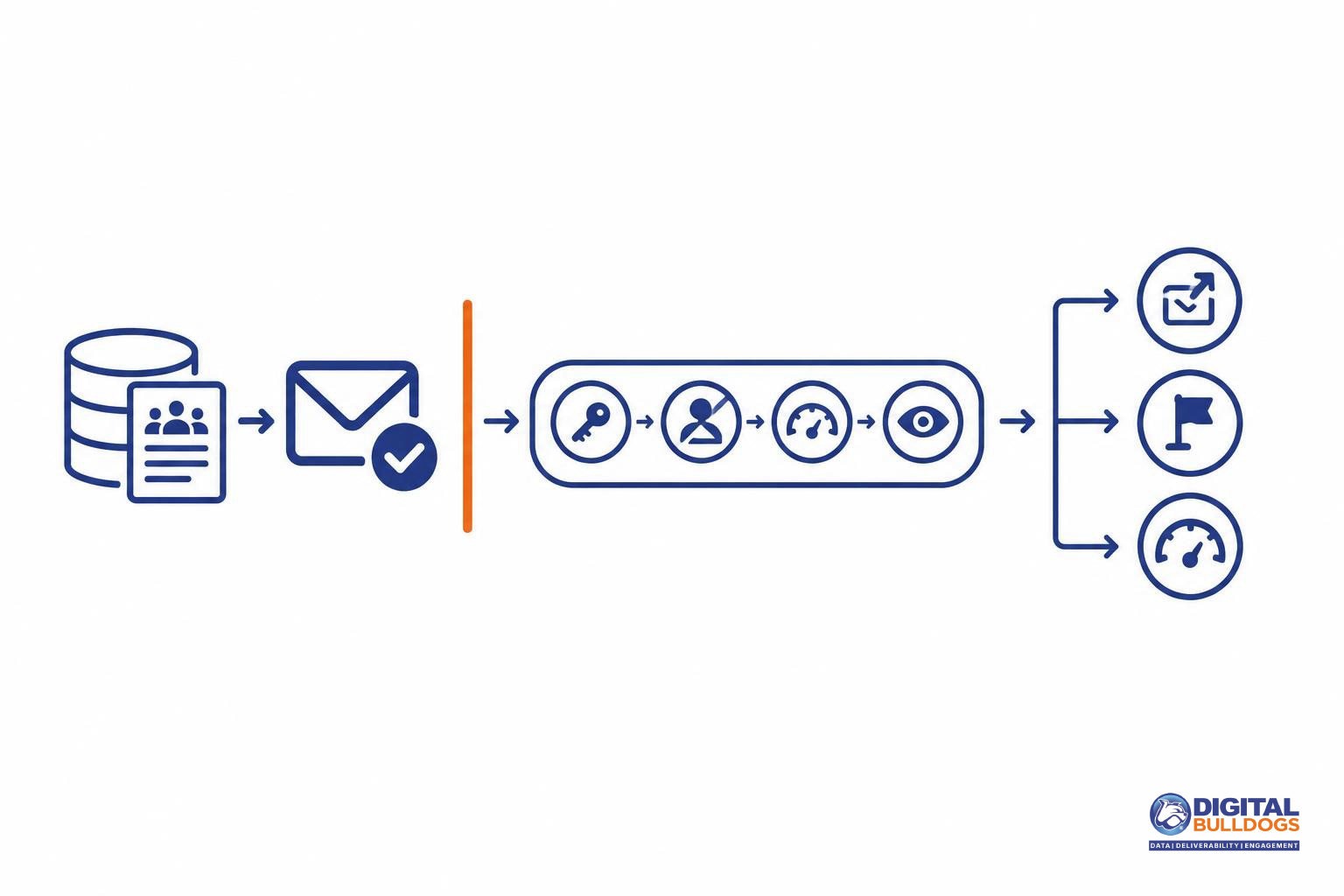
For your own campaign, work through this sequence:
- Choose the campaign purpose. Define why you want to contact this audience.
- Prepare the audience. Select the people and customer data needed for that purpose.
- Check eligibility. Review permission, opt-outs, and applicable sending requirements before including anyone.
- Map the needed fields. Make sure the destination can correctly use each identifier and campaign attribute.
- Transfer the audience. Make it available in the email platform.
- Verify readiness. Confirm the handoff worked and check whether your email setup is ready to send.
Activation makes data usable; it does not, by itself, establish permission to send or prove inbox placement. The FTC’s CAN-SPAM guidance sets out obligations for US commercial email, including honoring opt-outs, but does not establish compliance with every applicable privacy law. Separately, Google’s email sender guidelines address authentication, recipient signup, and sending practices—and explain that meeting the requirements does not guarantee messages will pass Gmail’s spam filters.
Activation, segmentation, and identity matching do different jobs
Segmentation defines the audience, identity matching connects records to profiles, and activation makes the audience available to a destination. Keeping these jobs separate helps you identify what needs to happen before an email campaign can move forward.
- Segmentation: Defines who belongs in a group based on selected criteria, such as customer attributes or behavior. It answers, “Who should be included?”
- Identity matching: Connects an incoming record to the appropriate profile using an identifier. It answers, “Which profile does this record belong to?”
- Activation: Makes the selected audience available to a destination where it can be used, such as an email marketing platform. It answers, “Where will this audience be used?”
For a concrete implementation example, Adobe’s documentation on audience creation, matching identifiers, and activation explains how audiences can come from segmentation or other sources, how primary identifiers support profile matching, and how profile-level consent is evaluated before activation. These are details of Adobe’s workflow, not a promise that every platform handles profiles the same way.
In that documented workflow, matching an email identifier to a profile and checking the profile’s consent are separate operations. A successful match establishes the profile connection; it does not establish permission to send marketing email. Likewise, an appended attribute or membership in a segment should not be treated as automatic authorization.
If the audience definition is still unclear, start with custom audience planning and segmentation before choosing a transfer method. First decide who belongs in the campaign; then determine how to match, check, and activate those records.
Prepare only the customer data the campaign needs
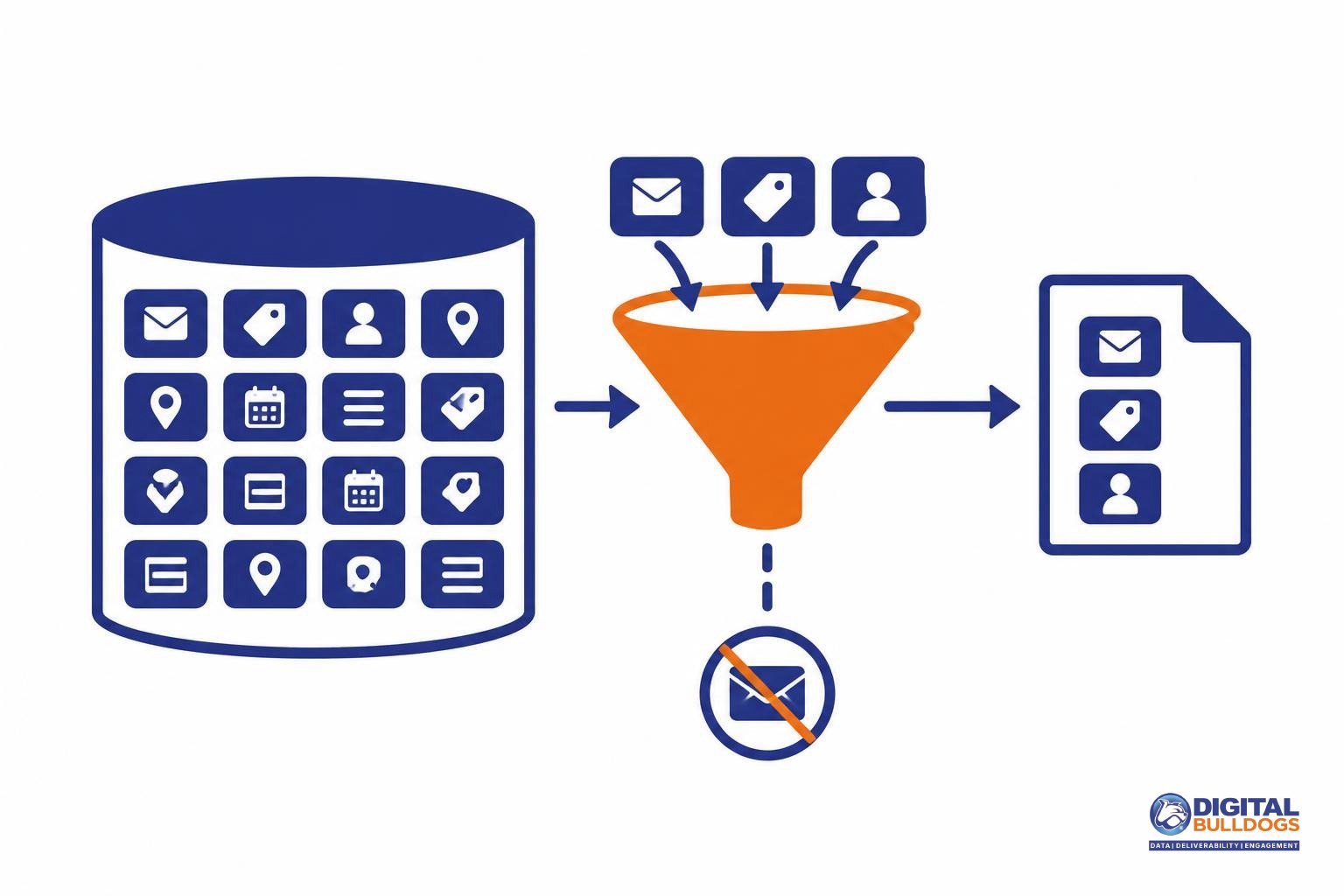
Start with the campaign’s purpose, then prepare only the fields needed to select the audience, personalize the message, and send it to the right destination. Use this checklist before building an export:
- Campaign purpose: What should this email help recipients do?
- Source system: Which system holds the records you will use?
- Identifier: Which field identifies each person or connects records across systems?
- Selection rule: What makes someone eligible for this audience?
- Personalization fields: Which attributes will the message actually use?
- Permission status: Where is email subscription status recorded, and how will it be checked?
- Exclusions: Which unsubscribed, suppressed, or otherwise ineligible records must stay out?
- Destination: Which email platform or export location will receive the audience?
- Refresh owner: Who will keep the audience and its exclusions current?
Before transfer, check identifier consistency, duplicate records, missing required fields, and the destination’s expected field names. The exact controls depend on your platform and destination. For example, Adobe’s audience documentation explains how primary identifiers affect profile matching and distinguishes profile attributes from contextual enrichment attributes.
In Adobe’s batch activation workflow, users can select profile attributes and enrichment attributes for export. That supports a deliberate choice about what to send—not an indiscriminate export of every available field.
If a defined information gap blocks the campaign, audience data append may be worth exploring. Adding an attribute does not establish email subscription permission. Keep that check separate: Google’s sender guidelines recommend emailing people who have signed up and avoiding purchased email addresses.
Check email eligibility before activating the audience
An address that matches a customer profile is not automatically eligible for an email campaign. Check legal obligations, mailbox-provider expectations, and your platform’s consent handling separately.
The FTC’s CAN-SPAM guidance for commercial email covers business-to-business messages too. It requires accurate sender information, nondeceptive subject lines, clear identification as advertising, a valid physical postal address, and a working opt-out method. Senders must honor opt-out requests and cannot hand off their responsibility simply by hiring a vendor to send on their behalf.
The FTC also says that once someone opts out, you cannot sell or transfer their email address—even as part of a mailing list—except to a company hired to help you comply with CAN-SPAM. Treat suppression information as a restriction that follows the address, not as a field to drop during an export.
Mailbox expectations are a separate check. Google’s guidelines for sending to personal Gmail accounts recommend emailing people who signed up and advise against purchasing email addresses. A purchased, identity-matched, or appended address is not evidence that the person opted in.
Platform controls need their own review. Adobe documents profile-level consent evaluation before activation; do not assume every destination or workflow handles consent the same way. Carry current suppression decisions into the campaign workflow, then check them again before sending. An earlier export should not be treated as permanently eligible.
Finally, CAN-SPAM compliance is not a complete assessment of privacy law, contractual restrictions, or destination policies. Review those requirements separately, and ask qualified counsel about other privacy obligations that may apply.
Put the audience to work: an email activation example
Audience activation turns a selected group into an audience your email platform can use. In this hypothetical example, an affiliate publisher wants to send a topic-specific offer to its own subscribers who signed up for that subject.
- Select the interest segment. Choose subscribers whose recorded interests match the offer. Keep the selection tied to what they signed up to receive; Google’s sender guidelines recommend sending to recipients who want your messages.
- Apply suppression rules. Exclude unsubscribed records before the handoff. For US commercial email, CAN-SPAM requires honoring opt-out requests; using a vendor does not remove the sender’s responsibility.
- Choose the required fields. For this campaign, that might mean the email address, topic label, and a first name only if the message uses it. Leave unrelated customer attributes out of the transfer.
- Map the email identifier and transfer the audience. Confirm which source field contains the email address and which destination field receives it. A scheduled file export can be an activation method—not every handoff needs to happen in real time. As a product-specific example, Adobe’s batch activation workflow includes destination and audience selection, scheduling, export attributes, and identity mapping.
Assign an audience owner to manage refreshes and suppression updates. Before sending, confirm how new qualifying subscribers reach the email platform, how removed members leave the campaign audience, and how fresh opt-outs are applied between exports.
If the sticking point is preparing or handing off that audience, Digital Bulldogs offers audience support for affiliates and direct-response senders to help work through the data requirements.
Verify the handoff, then check email delivery readiness
A completed audience export confirms a handoff—not inbox placement. Treat transfer verification and delivery readiness as separate operational checks.
Confirm what reached the destination
Check that the intended audience, identifiers, and campaign fields arrived where expected. In Adobe Experience Platform, batch audience activation includes selecting export attributes, mapping identities, and verifying exported files. Use that verification step to catch missing fields or an incorrect audience before sending; it does not establish whether a mailbox provider will accept or inbox the messages.
Review the sending setup before launch
For messages sent to personal Gmail accounts, Google’s email sender guidelines distinguish requirements for all senders from additional requirements for bulk senders. They address authentication, unsubscribe handling, gradual sending-volume increases, reputation, and monitoring. Those requirements are Gmail-specific, not a universal checklist for every mailbox provider.
Before the campaign starts, assign an owner to review:
- Authentication: Confirm that the sending domain meets the applicable authentication requirements.
- Suppression behavior: Verify that unsubscribed recipients stay excluded when the audience enters the sending workflow.
- Sending pace: Plan a controlled rollout rather than an abrupt volume increase.
- Monitoring responsibility: Decide who will watch delivery signals and adjust or pause sending when problems appear.
After sending begins, observe bounces, deferrals, spam complaints, and domain reputation. These signals help assess how receiving systems and recipients respond; export status cannot replace them. Authentication and audience activation alone cannot guarantee delivery, and an audience platform should not be treated as a tool that can diagnose every deliverability issue.
Choose the next step based on what is blocking activation
Start with the first unresolved gap—not a larger audience or another send. If you need help with audience preparation or sending readiness, Digital Bulldogs’ email deliverability and audience data services can help you work through those operational questions.
- Unclear audience rules → segmentation work. Write down who qualifies, who is excluded, and which identifier connects each record to a customer. Adobe’s audience documentation explains how segmentation creates audiences and how primary identifiers support profile matching.
- Missing campaign fields → data preparation. Compare your source fields with what the campaign needs for selection, personalization, and suppression. Resolve missing or inconsistent values before handing off the file.
- Uncertain permissions → compliance review. Pause activation until the intended use and suppression process have been reviewed. The FTC’s CAN-SPAM guide covers commercial email, including business-to-business messages, opt-out obligations, and sender responsibility when vendors participate; it is not a complete review of every applicable privacy law.
- Failed imports → destination mapping checks. Compare identifiers, required fields, and export settings with the destination’s requirements. Adobe’s batch activation workflow includes attribute selection, identity mapping, scheduling, and exported-file verification.
- Delivery problems → sending-system review. Check authentication, unsubscribe handling, volume changes, reputation, and server responses. Google’s sender guidelines address these areas for personal Gmail accounts; meeting them does not guarantee inbox placement.
For any specialist discussion, bring your audience definition, source fields, destination requirements, suppression process, and current delivery symptoms.
If you want help identifying the gap between your customer file and an email-ready audience, Book a free consult.
Keep researching on Digital Bulldogs
Frequently asked questions
How is audience activation different from audience segmentation?
Segmentation defines the group you want to reach; activation puts that group to work in a destination, such as an email platform. Identity matching is a separate step: it connects records to the appropriate profiles. Adobe’s audience documentation explains how audiences can come from segmentation or other sources, and how primary identifiers support profile matching.
Can a scheduled file export count as audience activation?
Yes. Activation does not have to be a live connection between platforms. In Adobe’s batch activation workflow, you select a destination and audience, configure the export schedule, choose attributes and map identities, then verify the exported files. A scheduled export can therefore be the handoff that makes an audience available for email use; it is not itself an email send.
Does matching or appending an email address mean someone subscribed?
No. Connecting an email address to a customer record does not establish that the person asked to receive marketing emails. Keep identity matching separate from subscription eligibility. Google’s sender guidelines recommend sending to people who signed up for your messages and advise against purchasing email addresses. Before activating appended addresses, check the subscription record rather than treating a successful match as permission.
What should happen to unsubscribed contacts during activation?
Exclude contacts who have opted out of the marketing email you plan to send, and carry those suppression rules through the handoff. The FTC’s CAN-SPAM compliance guide explains that senders must honor opt-out requests and generally cannot sell or transfer opted-out addresses, except to a company hired to help comply with the law. Using a vendor does not remove the sender’s legal responsibility.
Does successful audience activation mean my emails will reach the inbox?
No. A verified export confirms the audience handoff, not inbox placement. Adobe’s workflow treats export verification as an activation step; Google’s sender guidance separately addresses authentication, sending practices, reputation monitoring and server responses, and makes clear that inbox delivery is not guaranteed. Treat audience readiness and delivery readiness as separate checks before sending.
Sources
- Activate audiences to batch profile export destinations · Adobe · 2026-10-21
- Audiences Frequently Asked Questions · Adobe · 2026-10-21
- CAN-SPAM Act: A Compliance Guide for Business · Federal Trade Commission
- Email sender guidelines · Google