
Sudden Drop in Email Inbox Placement? Diagnostic Checklist
A sudden drop in email inbox placement can stem from authentication problems, reputation issues, or changes in sending volume—not necessarily a setup that needs replacing; Gmail’s sender guidelines identify these as areas to check. Before changing anything, confirm whether messages are reaching spam, being rejected, or simply appearing in a different inbox category: Gmail’s Promotions tab is part of the inbox.
This checklist walks you through isolating the affected provider, inspecting delivery responses and authentication, reading complaints alongside reputation, and matching the incident to audience or sending changes. Then you’ll narrow the suspected cause, retest without changing everything at once, and gather evidence for escalation while continuing to monitor.
First, confirm whether inbox placement actually dropped
Before choosing a remedy, confirm the symptom, isolate the affected traffic, inspect delivery evidence and authentication, then investigate reputation and audience changes. Start by separating four possibilities: a reporting change, a move between inbox categories, spam placement, or a delivery failure.
A lower open rate alone does not prove that messages landed in spam. In its email sender guidelines, Google says third-party open rates are not necessarily an accurate indicator of deliverability. If falling opens triggered the alarm, use our guide to what to check when open rates suddenly drop for that investigation rather than treating the metric as placement evidence.
Also distinguish an inbox-category change from spam filtering. Gmail’s Promotions tab is part of the default inbox, not the spam folder, as shown in Google’s explanation of inbox categories. If messages moved from Primary to Promotions, start with why emails go to Gmail’s Promotions tab rather than assuming delivery failed.
Before making changes, create a short incident record:
- Last comparable successful send: Record the campaign, sending time, recipient provider, audience segment, and evidence of its placement.
- First affected send: Capture the same details so you can compare similar traffic.
- Evidence behind the alert: Note whether it came from a reporting dashboard, a recipient’s folder check, an inbox-placement test, or a delivery error. Keep the original messages and error responses where available.
The goal is to name what actually changed. “Opens fell,” “messages appeared in Promotions,” “messages were found in spam,” and “the receiving server rejected messages” are different findings—and need different next steps.
Isolate the affected provider and inspect delivery evidence
Start by separating messages the receiving server accepted from messages it rejected or temporarily failed. An accepted message with a placement concern needs a different investigation from a failed delivery attempt. If that distinction is unclear, review our guide to email delivery versus inbox placement before interpreting your reports.
- Break down the affected sends. Compare receiving provider, sending domain, sending IP, campaign, and audience segment. An account-wide average can hide a problem concentrated in one provider or sending stream.
- Collect the delivery evidence. Export your email service provider’s delivery events, complete receiving-server responses, and timestamps. Save representative message headers from affected messages where available. Keep each response tied to its message and sending stream.
- Separate facts from hypotheses. Record “server returned a temporary failure” or “recipient found the message in spam” as observations. Treat explanations such as “IP reputation declined” as suspected causes until you have supporting evidence.
- Check personal Gmail traffic separately. In Postmaster Tools, inspect authentication and delivery-error information for the affected period. The delivery-error dashboard covers rejected or temporarily failed authenticated messages; it is not a complete measurement of subscriber inbox placement.
Interpret the dashboard alongside your event logs. Google’s Postmaster Tools documentation explains that its dashboards cover personal Gmail accounts, data is not real time, and reporting may be unavailable when sending volume is low. A missing or quiet dashboard therefore does not establish where accepted messages landed. Use it to supplement—not replace—the message-level evidence.
Check authentication on the affected messages
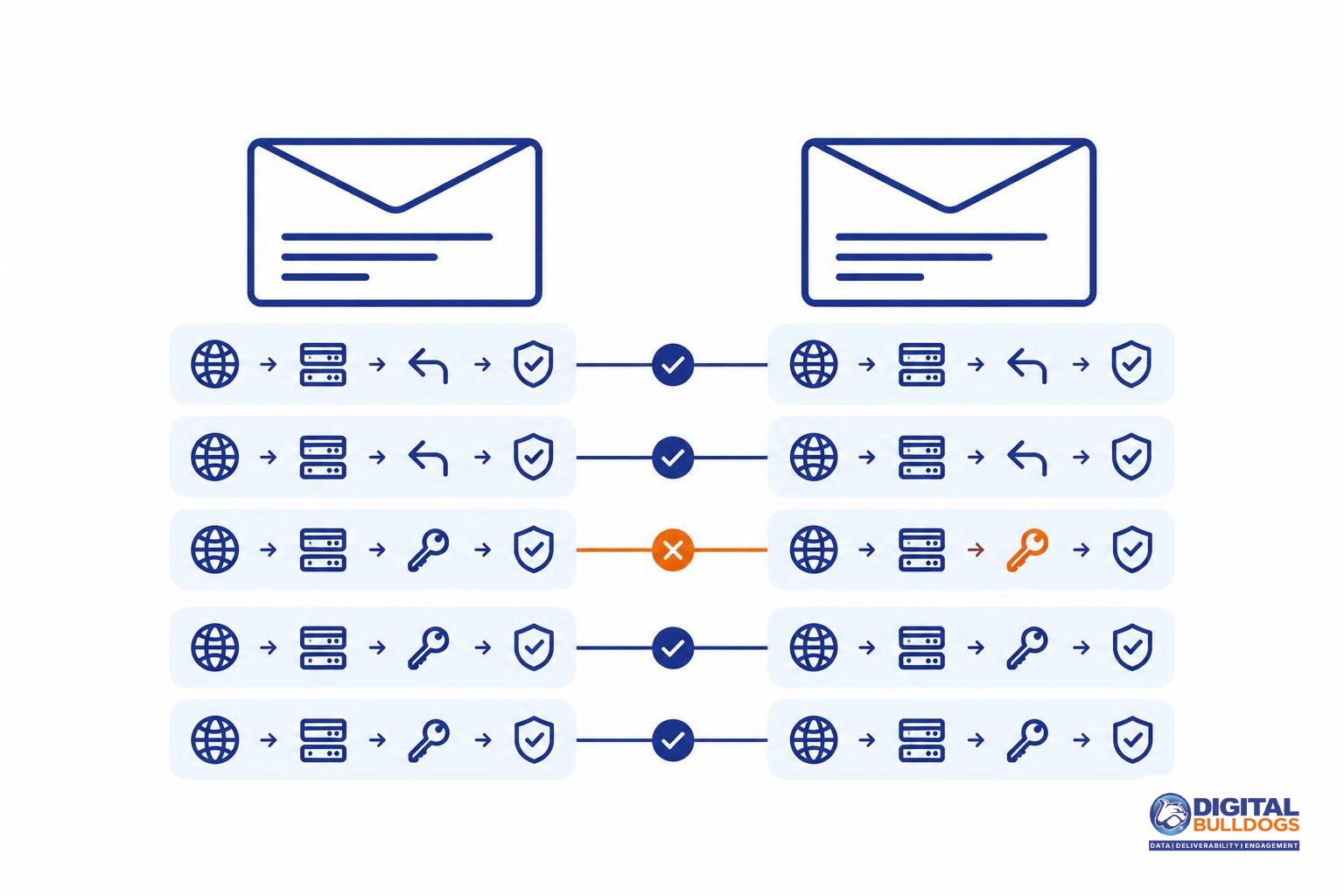
Compare a recent affected message with an earlier, comparable message that reached the inbox. Use their full headers to check whether the sending path changed—not just whether authentication records still exist in DNS.
- From domain: Is the visible sender domain the same?
- Sending IP: Did the message leave through a different server or sending service?
- Return-path domain: Has the domain used for bounce handling changed?
- DKIM signing domain: Is the message signed by the expected domain?
- Authentication results: What did the receiving provider report for SPF, DKIM, and DMARC?
Inspect the results on the actual messages. For SPF, confirm that the sending IP is authorized for the domain being checked. For DKIM, confirm that the signature verifies. For DMARC, check whether a passing SPF or DKIM domain aligns with the visible From domain. A published DNS record alone does not establish that a particular message passed these checks.
Match any differences to recent ESP migrations, added sending services, DNS edits, or header changes. Review that sending path against Gmail’s authentication and sending requirements, including its requirements for domain alignment and valid message formatting. If a service modifies messages after signing, investigate whether those changes are breaking DKIM verification.
Apply the receiving provider’s rules rather than assuming one checklist covers every sender. Requirements differ by provider and sender classification; Yahoo’s sender requirements, for example, distinguish between all senders and bulk senders. Treat authentication as a necessary diagnostic check, not a promise of inbox placement: passing it does not guarantee that a message will avoid spam filtering.
Read complaints and reputation together
A quiet complaint dashboard does not prove your messages are reaching inboxes. Compare the signals around the first affected send rather than treating a low complaint rate as an all-clear.
- Reputation: Did available domain or IP reputation indicators change before or alongside the placement drop?
- Complaints: Did reported complaints rise, fall, or disappear? Check what each report measures before comparing it with another dashboard.
- Authentication: Did authentication results change for the affected traffic?
- Delivery errors: Did rejections or temporary failures appear around the same time?
For personal Gmail traffic, Google’s Postmaster Tools documentation explains an important limitation: reported spam rates can stay low when Gmail automatically sends messages to spam. Fewer messages reach inboxes where recipients can mark them as spam, so fewer complaints do not necessarily mean healthier placement. Reports can also be delayed, and low-volume traffic may not produce dashboard data. A blank chart is not evidence of good reputation.
Keep your email service provider’s complaint metric separate from the mailbox provider’s metric unless you have confirmed that their definitions and denominators match. Otherwise, a side-by-side percentage comparison can suggest a change that the underlying evidence does not establish.
For Yahoo traffic, use Yahoo’s own sender requirements and complaint-reporting guidance. Review its Complaint Feedback Loop reports alongside bounces, authentication, and sending practices; do not apply Gmail dashboard definitions universally. The goal is to find signals that agree—or identify gaps that need investigation—not to let one reassuring chart overrule the rest.
Match the incident to audience and sending changes
Build a change log around the first signs of the drop, then look for changes that affected the same recipients, provider, or sending stream. A timing match gives you something to investigate—not proof of the cause.
- Audience: Record list imports, recipient acquisition sources, and any changes to targeting or segment selection.
- Suppression: Note changes to exclusion rules, unsubscribe processing, and how bounced addresses and complaint reports reach your suppression list.
- Sending volume: Compare total volume, send frequency, and bursts with the previous sending pattern.
- Messages and infrastructure: Log template revisions, link or message-structure changes, and switches in sending platforms, domains, or IP addresses.
Prioritize concrete evidence: invalid-recipient bounces, complaints indicating unwanted mail, complaint reports that were not processed, or unsubscribe requests that did not stop subsequent sends. Yahoo’s sender best practices recommend removing invalid recipients, monitoring bounces and complaints, and honoring unsubscribe requests. Check that these processes worked for the affected segment, rather than assuming the settings were enough.
If a volume or infrastructure change coincided with the incident, compare that traffic with your earlier cadence and sending configuration. Google’s sender guidelines advise consistent sending, avoiding sudden volume spikes, and increasing volume gradually after significant infrastructure or message-format changes.
Use that evidence to narrow the corrective work: suppress the implicated recipients, repair a broken unsubscribe workflow, or adjust the changed sending configuration. Avoid unrelated changes across the entire program. If you need help implementing suppression rules or cleaning up the affected audience, Digital Bulldogs’ list management and hygiene service is a practical next step.
Retest the suspected cause without changing everything
Write down what you think caused the drop before testing a fix. Make the hypothesis specific: “Messages from the new sending platform are failing authentication,” rather than “Our reputation is bad.” Record the intervention, when it happened, and which messages it affects. Keep unrelated variables—such as audience, content, sending platform, and cadence—stable where practical so the comparison remains useful.
- Suspected authentication problem: Inspect the authentication results on newly sent messages after the correction. An older message cannot confirm that the fix worked.
- Delivery error: Check whether the relevant server response recurs on subsequent sends to the affected provider. Follow the response text rather than treating every failure as the same issue; Google’s sender guidelines recommend monitoring server responses to identify delivery problems.
- Suspected spam placement: Compare what you observe in test mailboxes with the affected provider’s diagnostics and available subscriber evidence, such as a subscriber locating the message in spam. Keep each type of evidence separate rather than treating one as proof of the others.
For each retest, record which test addresses received the message and where it appeared: inbox, a named inbox category, or spam. If you cannot locate it, record that uncertainty. Describe these as test-mailbox outcomes, not an audience-wide inbox placement result. For the detailed limitations of this approach, see email seed list testing versus real inbox placement.
Do not declare recovery from one successful test or expect an immediate dashboard change. Gmail’s Postmaster Tools reporting can be delayed, and low-volume sending can leave data unavailable. Repeat the relevant checks on subsequent sends and look for consistent evidence before closing the incident.
Escalate with evidence and keep monitoring
Escalate when your checks and controlled retests leave the cause unclear, or when you need help interpreting provider responses. A provider or deliverability specialist will have a more useful starting point if you bring a clear record of what changed and what you tested.
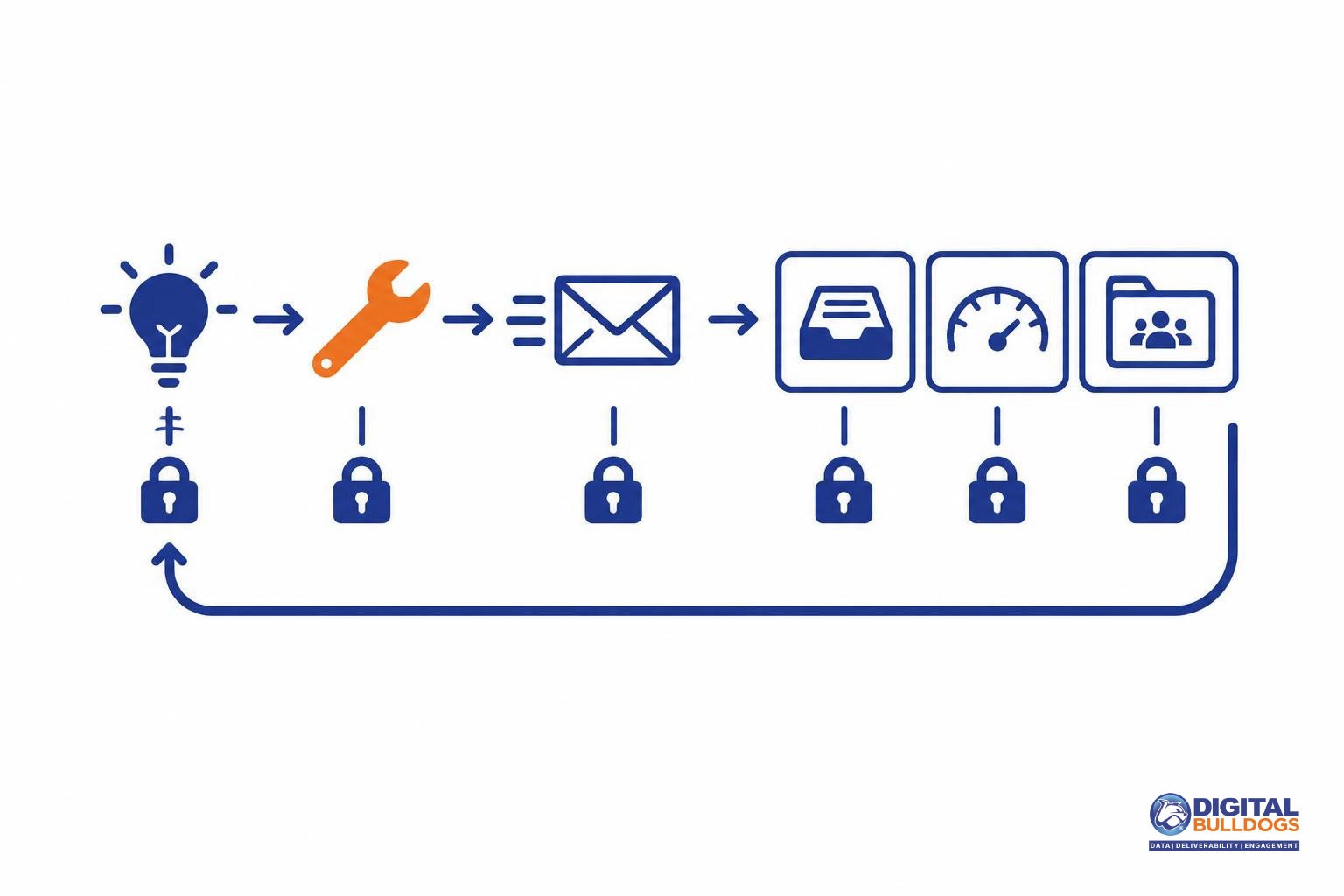
Prepare an escalation packet that includes:
- Scope: affected mailbox providers, sending domains and sending IPs, plus which traffic appears unaffected.
- Timing: when the problem started, with timestamps and time zones for representative sends.
- Message evidence: representative original messages and full headers, along with delivery responses, deferrals and rejection details.
- Recent changes: authentication, sending infrastructure, volume, audience sources, segmentation or message content.
- Retest findings: what you changed, what stayed constant and what you observed afterward.
For Gmail, follow Google’s delivery-issue reporting instructions. Reporting requires verified domain ownership and compliance with sender guidelines, and the submission calls for original message information. Treat this as an evidence-based support route—not an unrestricted way around filtering.
Keep configuration repair separate from placement validation. Correcting an authentication record, for example, addresses that configuration issue; it does not by itself prove sustained inbox placement improvement. Continue observing the affected traffic across subsequent sends, recording placement findings and delivery responses rather than declaring recovery from a single successful test.
If you need help bringing those signals together, Digital Bulldogs’ inbox placement monitoring is an optional next step. You can book a free consult to review the evidence and decide what to investigate next.
Keep researching on Digital Bulldogs
Frequently asked questions
Does a sudden drop in open rates prove that emails are going to spam?
No. A drop in opens is a reason to investigate, not proof of spam-folder placement. Google says it does not track open rates and cannot verify the accuracy of third-party open-rate reporting. Before changing your sending setup, compare the drop with delivery responses and available reputation data to look for supporting evidence.
Does Gmail Promotions placement count as a spam-folder problem?
No. Promotions is a category within Gmail’s default inbox, not the spam folder. Gmail uses it to organize promotional messages separately from other categories. When reviewing a placement report, distinguish between messages reaching Promotions and messages reaching spam so you do not diagnose an inbox-category change as a spam-filtering incident.
Why can Gmail’s reported spam rate look low while placement is poor?
A low reported spam rate does not necessarily mean messages are reaching the inbox. Google explains that automatic spam filtering can produce a low reported spam rate because fewer messages reach inboxes where recipients can report them as spam. Read that metric alongside reputation and delivery-error data rather than treating it as a standalone sign of healthy placement.
Does passing SPF, DKIM, and DMARC guarantee inbox placement?
No. Passing authentication is an important checkpoint, not a promise of inbox placement. Yahoo’s sender guidance addresses authentication alongside complaints, invalid recipients, unsubscribe handling, and sending practices. If authentication passes on the affected messages, continue checking audience quality and sending changes rather than assuming authentication has ruled out every possible delivery problem.
What evidence should I collect before reporting a Gmail delivery issue?
Collect the original message information for affected emails, and confirm that your domain verification and account ownership meet the reporting requirements. Google’s delivery-issue reporting instructions explain eligibility, sender-guideline compliance, and the original message information needed for submission. Keep your report focused on the affected messages rather than relying on an open-rate screenshot alone.
Sources
- Email sender guidelines · Google
- Postmaster Tools dashboards · Google
- Organize your emails into categories · Google
- Sender Best Practices · Yahoo
- Report delivery issues in Postmaster Tools · Google