
Google Postmaster Tools No Data: What to Check First
If you’re seeing “google postmaster tools no data,” adding your domain doesn’t ensure reports will appear: Google reports on mail sent to personal Gmail accounts and may withhold low-volume data to protect user privacy. First, confirm domain verification and account access, check that you added the domain used by DKIM or SPF, and allow for reporting delays and UTC date boundaries.
This guide separates empty reports from dashboards that are no longer available, then walks through domain setup, Google’s volume guidance, and dashboard-specific requirements. You’ll get a practical missing-data checklist and learn when to investigate delivery separately rather than treating an empty report as proof that your messages aren’t reaching inboxes.
Start here: missing data is not the same as a missing dashboard
If Google Postmaster Tools shows no data, first check whether the report is available but empty—or whether the dashboard itself is missing. Neither situation, by itself, tells you that your sender reputation is poor.
For an empty report, start with the setup and traffic checks. Confirm that your domain is verified and that your Google account has access. Then check that you added the domain that actually authenticates your messages: the DKIM signing domain or the SPF Return-Path domain. Postmaster Tools reports on mail sent to personal Gmail accounts, and low-volume traffic can be omitted to protect user privacy. Google’s setup guidance explains these access, domain-selection and reporting-scope requirements.
Next, allow for reporting delay. Postmaster Tools is not a live delivery monitor: updates typically arrive within 24 hours, but can take longer. Google’s dashboard documentation describes reporting delays and low-volume data gaps, so an empty recent date range is not enough to diagnose a reputation problem.
A missing dashboard needs a different check. As of November 13, 2026, Google’s interface transition notice says legacy-interface deprecation is postponed. It also says the Domain and IP Reputation dashboards are not included in the new interface and are scheduled for retirement.
The distinction matters: an available report with no observations calls for troubleshooting verification, authentication domains, eligible traffic and reporting lag. A dashboard absent from the interface may instead reflect a product change—not anything about your email performance.
Confirm domain verification and account access
Adding a domain to Postmaster Tools does not finish setup. Google requires you to verify the domain before it displays email information. If that step is incomplete, start there—not with sending volume.
To complete verification:
- Open the domain’s verification details in Postmaster Tools. Copy the supplied TXT record, or use the CNAME option if offered.
- Add the record to your domain’s DNS. Enter the verification details exactly as supplied, using the appropriate record type.
- Return to Postmaster Tools and complete verification. Adding the DNS record alone does not complete the process.
If verification fails, compare the verification string and DNS record with Google’s Postmaster Tools setup instructions. Check that you added the record to the intended domain and copied the supplied values correctly before trying again.
Next, check which Google account is signed in. It needs to be the account that verified the domain or an account that has been granted access by the verified owner. This matters when an agency, client or another team member originally handled setup.
An authorization error is an access problem, not a low-volume reporting gap. Resolve domain verification and account permissions before investigating why an accessible dashboard has no data. These are separate checks: verification establishes domain ownership, while account access determines who can view its reports.
Add the domain that actually authenticates your email
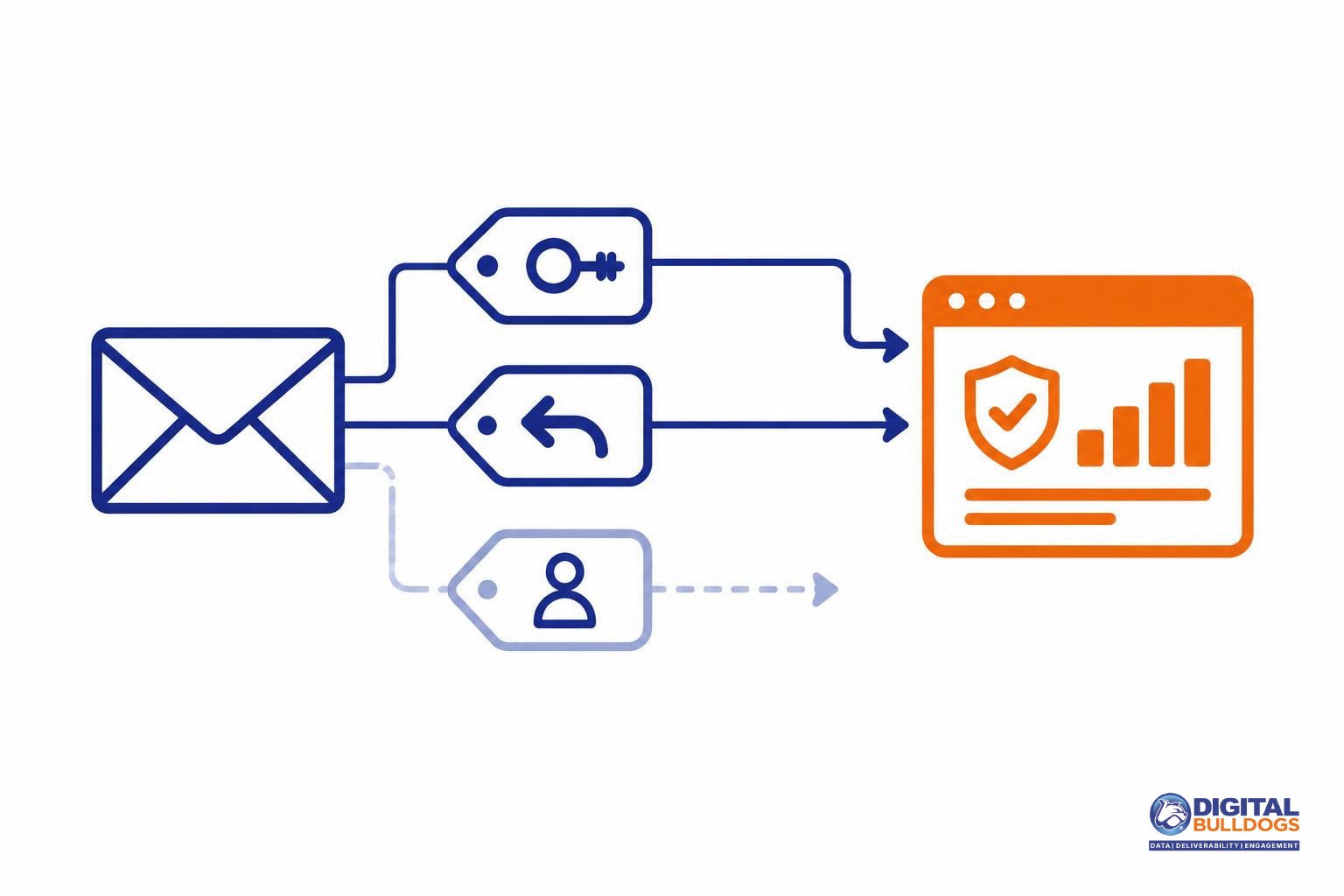
Check the domain your campaign uses for authentication—not just the address recipients see in the From field. For Postmaster Tools setup, Google directs you to use the DKIM signing domain identified by d= or the SPF Return-Path domain. Your visible From domain may be different.
Open the full headers of an actual campaign message and compare these domains with the domain selected in Postmaster Tools:
- DKIM signing domain: Find the d= value in the DKIM-Signature header.
- SPF domain: Check the domain in the Return-Path address.
- Visible From domain: Note whether it matches either authentication domain or uses a different domain or subdomain.
If the domains are unclear, ask your sending provider which DKIM signing and SPF Return-Path domains it uses for your campaigns. Use a message from the sending setup you are troubleshooting, rather than assuming every campaign uses the same configuration.
Ownership verification and message authentication are separate checks. Verifying a domain in Postmaster Tools does not establish that your messages pass authentication. Google’s sender guidelines require SPF or DKIM for all senders. Bulk senders must use SPF, DKIM and DMARC, and their From domain must align with either the SPF domain or the DKIM domain for DMARC.
Also check which reporting view you are reading. Google’s authentication reporting distinguishes From-domain and DKIM/SPF-domain views. These are not interchangeable: a view organized around the visible sender domain is not the same as one organized around the domains authenticating the message.
Understand what Google actually says about minimum volume
Google does not publish a numeric minimum that guarantees Postmaster Tools data will appear. Its reports cover messages sent to personal @gmail.com and @googlemail.com accounts—not every recipient whose organization uses Google Workspace. Your total campaign volume therefore is not the same as the traffic eligible for these reports.
Google’s setup guidance, checked November 13, 2026, states: “Data might be missing if the total number of messages for a given day is too low.” Google limits reporting to protect user privacy, but that guidance supplies no numeric minimum or guaranteed population threshold. An empty chart alone does not establish that your authentication is broken or your messages are going to spam.
Keep that reporting limitation separate from Google’s bulk-sender classification and sending requirements. Bulk-sender status determines which requirements apply; it is not a dashboard eligibility target. Do not treat it as a volume goal for making reports appear.
Do not add unwanted sends to fill a chart. Google recommends sending only to recipients who want your messages. If your eligible traffic is limited, preserve that wanted-mail approach rather than expanding sends solely to generate reporting data.
Allow for reporting lag and the dashboard’s date boundaries
An empty report immediately after a send is not enough to identify a setup problem. According to Google’s dashboard documentation, data typically updates within 24 hours, but it can take longer. Changes to compliance status can take up to 7 days to appear. Reporting also uses UTC, so the dashboard’s date boundaries may not match your local sending date.
Before changing your setup, check the timing:
- Match the date range to the send. Select a range that includes when the relevant messages were sent, accounting for UTC rather than relying only on the date shown in your campaign platform.
- Allow for reporting delay. If the send was recent, check again later instead of treating a blank chart as evidence that verification failed.
- Separate compliance updates from traffic reports. A recent authentication change may not appear in the compliance dashboard immediately.
Waiting does not guarantee a report. Google may omit data when traffic volume is too low. Neither the typical reporting window nor the compliance-update window promises that low-volume traffic will become visible. Use elapsed time to rule out a premature check, not to conclude that your setup is correct or broken.
Why some dashboards stay empty while others populate
Each dashboard has its own reporting conditions, so data in one report does not mean every report will populate. Google may also withhold data to protect user privacy when sending volume is low.
Google’s dashboard documentation explains the reporting limits and prerequisites. Here is how those differences affect troubleshooting:
- Spam Rate: This report uses DKIM-authenticated mail. If your messages are not authenticated with DKIM, do not expect this dashboard to provide a useful view of spam complaints. Low-volume privacy limits can also leave it empty.
- Authentication: This dashboard reports authentication results, but low-volume privacy suppression can prevent data from appearing. Its absence alone does not establish whether authentication passed or failed.
- Feedback Loop: This report needs correctly formatted campaign identifiers in the Feedback-ID header and sufficient qualifying activity. Sending mail alone does not ensure that campaign-level feedback will appear.
- Compliance status: Google combines primary-domain and subdomain activity under the primary domain. Check that primary-domain view rather than expecting a separate compliance assessment for each sending subdomain.
Legacy reputation reports need a separate check. Low-volume privacy limits can also affect legacy Domain and IP Reputation data. However, Google’s interface transition notice says those dashboards are excluded from the new interface and planned for retirement. An unavailable dashboard is different from an available report with no data.
A blank report is not a clean bill of health. It does not prove that recipients welcome your mail, authentication is correct, or messages reach the inbox. Treat missing data as a reporting limitation to investigate—not as evidence of healthy delivery.
Work through this missing-data diagnostic checklist
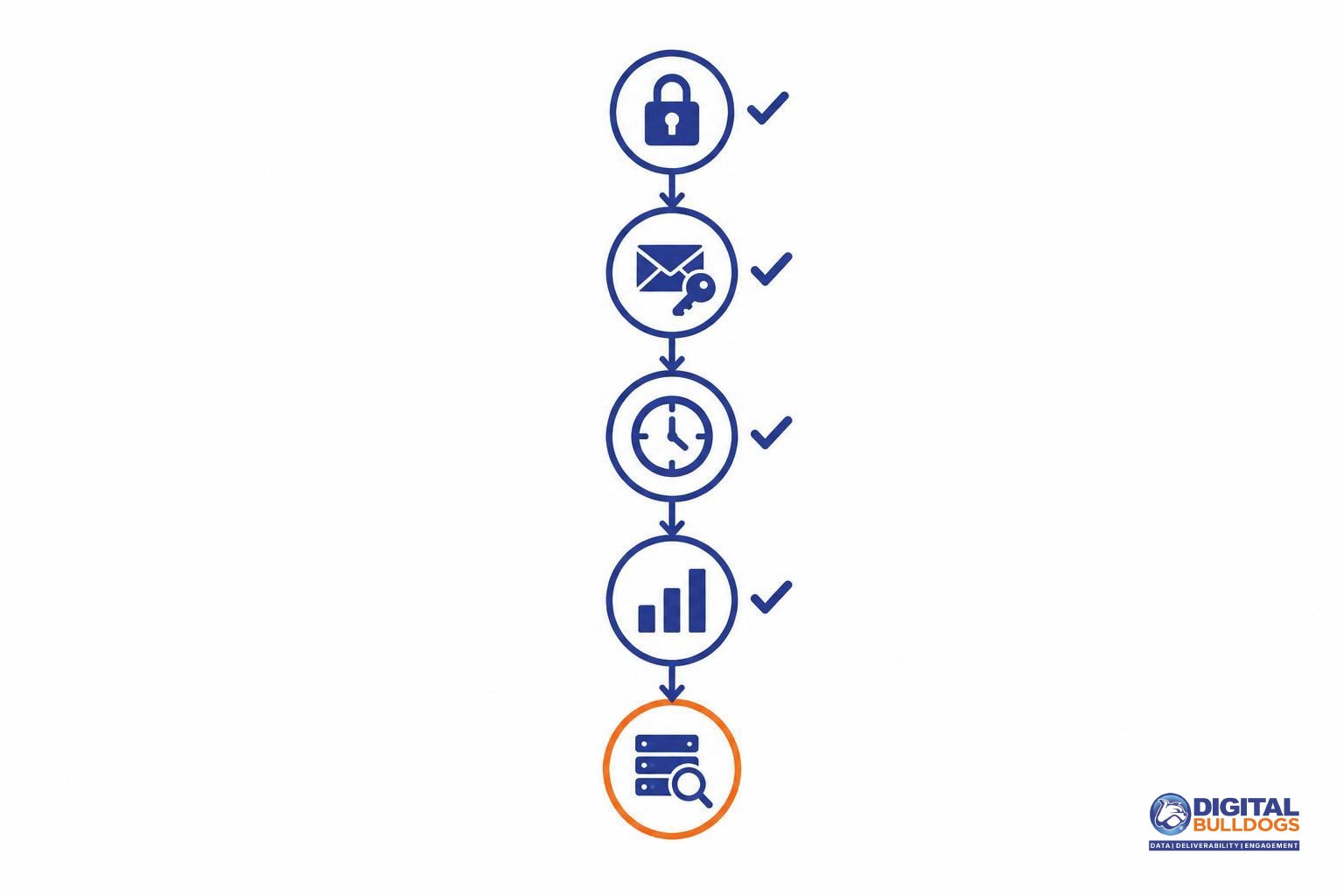
Check these items in order before changing your sending setup. For agencies, record the selected domain, account and empty report so everyone investigates the same issue.
- Confirm access and verified ownership. Sign in with the Google account that owns the domain or has been granted access, then confirm that verification is complete. Google’s Postmaster Tools setup instructions cover verification, account access and selecting the authentication domain.
- Match the selected domain to a live message. Inspect the headers of a recent campaign message. Compare its DKIM d= domain or SPF Return-Path domain with the domain you added—not just the address recipients see in the From field. If a sending platform uses a subdomain, check that exact authentication identity.
- Confirm the traffic and reporting window. Make sure the campaign reached personal Gmail accounts; mail sent only to Google Workspace recipients does not establish the relevant reporting traffic. Check that your date range includes the send, account for UTC boundaries and allow for reporting lag. Low-volume data may be omitted for privacy; an empty report alone does not establish an authentication failure.
- Check the specific report’s prerequisites. Google’s dashboard documentation explains reporting delays, date boundaries and report-specific dependencies. Spam Rate reporting depends on DKIM-authenticated traffic, while Feedback Loop reporting has additional requirements. Identify the missing prerequisite before adjusting campaigns.
- Use DNS checks as supporting evidence. Use the free deliverability tools and authentication resources to support your DNS review, then compare your setup with Google’s sender authentication requirements. Keep those requirements separate from reporting eligibility: meeting sender requirements does not, by itself, ensure a populated dashboard.
If reports remain empty, investigate delivery separately
If your setup checks out but reports remain empty, shift from troubleshooting the dashboard to reviewing delivery evidence. Google notes that low sending volume can leave Postmaster Tools data unavailable because of privacy protections. Treat that gap as a limit on what you can conclude—not a reason to manufacture traffic or send mail people did not ask for.
Google recommends using Postmaster Tools alongside reports from your email service provider. Review those reports for delivery errors, deferrals and authentication issues. Keep the questions separate: is Google displaying enough data to report, and what evidence do you have about delivery problems? An empty dashboard alone does not answer the second question.
For broader interpretation, review how to assess email domain reputation without a Gmail score. If you add supplementary placement checks, first understand what email seed tests can and cannot tell you. Use those checks as another piece of evidence, not a substitute for missing Google reports or proof that every recipient receives your mail in the inbox.
If you want help reviewing authentication, sending reports and the evidence available for your domain, explore Digital Bulldogs’ done-for-you email delivery support or Book a free consult. Neither step guarantees populated dashboards or inbox placement.
Frequently asked questions
Why is my domain verified but Postmaster Tools still shows no data?
Verification confirms access to the domain; it does not guarantee that reports will populate. Missing data can reflect low sending volume, reporting delays, or a mismatch between the domain you added and the domain authenticating your mail. Check those separately, and distinguish an empty report from a dashboard that is no longer available in your interface.
What is the minimum email volume for Google Postmaster Tools?
Google does not publish a fixed minimum volume that guarantees Postmaster Tools data. Low-volume reporting can be withheld to protect user privacy. Do not confuse reporting eligibility with the thresholds in Google’s email sender requirements: those determine which sending requirements apply, not whether a dashboard will display data. Increasing volume solely to populate a report is not a useful diagnostic step.
Should I add my From domain, DKIM domain, or Return-Path domain?
Start with the domain that actually authenticates your messages: the DKIM signing domain in the d= field, or the SPF domain associated with the Return-Path. Do not assume the visible From domain is the right choice just because recipients recognize it. Check the headers of a sent message, identify the authentication domains, and make sure the domain or subdomain you are monitoring matches.
How long does Postmaster Tools take to show new data?
Postmaster Tools is not a live delivery monitor. Google describes a typical reporting delay of 24 hours, with longer delays possible. Its reporting dates use UTC, which can also make recent sending appear under a different date than you expect locally. Allow for that lag before treating an empty date range as evidence of a delivery problem.
Does Postmaster Tools include messages sent to Google Workspace recipients?
No. Google defines Postmaster Tools reporting as covering mail sent to personal Gmail accounts, not Google Workspace recipients. If your audience mainly uses business addresses hosted by Google, those sends do not establish that your Postmaster Tools reports should populate. Use your sending platform’s delivery records to investigate those messages separately.
Why can’t I find the Domain Reputation dashboard in the new interface?
The Domain Reputation dashboard is not included in the new interface. Google’s Postmaster Tools transition notice explains that the Domain and IP Reputation dashboards are excluded from the new experience and planned for retirement. Their absence is an interface change, not proof that your domain verification failed or that Google has stopped receiving your messages.
Sources
- Set up Postmaster Tools · Google Gmail Help
- Postmaster Tools dashboards · Google Gmail Help
- Email sender guidelines · Google Gmail Help