What Is a Good Spam Complaint Rate? Targets and Next Steps
If you’re asking what is a good spam complaint rate, Gmail’s guidance is a useful starting point: keep it below 0.1% and avoid ever reaching 0.3% or higher. If yours is too high, review whether recipients expected your emails, reconsider recent targeting or frequency changes, and make unsubscribing easy.
This article explains what your complaint rate actually measures, where to find complaint data in Gmail, Yahoo, and your sending platform, and how to trace a spike. You’ll also learn which recipient-experience fixes to prioritize and how to check whether delivery is improving—not just whether the complaint percentage is falling.
What is a good spam complaint rate?
For Gmail, a good operating target is a reported spam rate below 0.1%, while avoiding ever reaching 0.3% or higher, according to Google’s published spam-rate guidance. That distinction matters: the lower figure is the recommended target, not a reason to treat everything below the higher threshold as healthy.
Separately, Yahoo’s sender requirements say to keep spam rates below 0.3%. Yahoo calculates that rate using mail delivered to the inbox. Google’s lower operating target should not be presented as a Yahoo requirement.
These are provider-specific guidelines, not a universal industry benchmark. Google’s guidance applies to messages sent to personal Gmail accounts. Before comparing either threshold with the complaint percentage in your sending platform, check whether the platform measures the same recipients and uses the same denominator.
Staying below a complaint limit does not guarantee inbox placement. Both providers also set expectations around authentication, wanted mail, and easy unsubscribe options. A low complaint rate is one signal to monitor—not proof that every part of your email program is working well.
For authentication and the additional rules that apply to bulk senders, use our Gmail and Yahoo bulk sender requirements checklist. Here, the practical goal is to stay comfortably below the applicable complaint limit and investigate increases rather than waiting to cross it.
Check what your complaint rate actually measures
A mailbox provider’s complaint rate and your email service provider’s (ESP’s) rate may differ because they count different messages. The general calculation is reported complaints divided by the eligible message population, expressed as a percentage. Before comparing percentages, check which messages each dashboard includes.
According to Google’s Postmaster Tools dashboard definitions, Gmail measures user-reported spam among DKIM-authenticated messages delivered to engaged recipients’ inboxes. Its calculation also includes messages initially delivered to spam that recipients subsequently mark as “not spam.” This is not a complaint rate across every message you attempted to send.
Yahoo’s sender best practices likewise specify that its spam complaint rate is based on messages delivered to the inbox. Don’t substitute all attempted sends—or your ESP’s accepted-message total—for that inbox-delivery population. If your ESP uses a different denominator, its percentage is not directly comparable.
A low reading also needs context. Google warns that automatic spam filtering can leave a reassuringly low user-reported complaint rate because fewer messages reach the inbox where recipients can report them. Gmail may also withhold dashboard data at low volumes to protect user privacy; missing data is not evidence of no complaints.
If complaints look low while engagement declines, investigate both signals rather than declaring delivery healthy. Start with what to check when open rates suddenly drop, but treat opens as a troubleshooting clue—not proof of inbox placement.
Find complaints in Gmail, Yahoo, and your sending platform
Start with mailbox-provider feedback, then check how your email service provider (ESP) handles it. These channels offer different views of complaints, so keep their reports separate.
Gmail: domain and campaign signals
Use Gmail Postmaster Tools to review domain-level user-reported spam. Its spam-rate dashboard covers eligible messages delivered to inboxes, not all messages you sent. Check the Feedback Loop dashboard for campaign-level signals when your messages include supported feedback identifiers. This is not a recipient-level complaint feed. Missing data can reflect privacy protections, and a low rate can be misleading if Gmail is already filtering messages into spam.
Yahoo: complaint reports for suppression
Yahoo’s Complaint Feedback Loop requires enrollment of the DKIM signing domain. It provides Abuse Reporting Format reports that can help you identify and suppress recipients who complained. That feedback can also guide changes to targeting and sending frequency.
Your ESP: confirm what happens after a complaint
Ask your ESP whether it receives and processes complaint reports, which DKIM signing domains are covered, and how suppressions are applied. Confirm whether suppression affects only one list or campaign, or extends across your account.
Keep an investigation worksheet for each reporting channel:
- Provider and sending domain: Record the mailbox provider and relevant sending or DKIM signing domain.
- Campaign and reporting period: Note the campaign name or feedback identifier and the dates covered.
- Complaint count: Record it when available; leave it unavailable rather than estimating.
- Denominator definition: Copy what the reporting tool actually measures, such as eligible inbox-delivered messages.
Use this worksheet to trace patterns—not as a universal formula for comparing provider complaint rates.
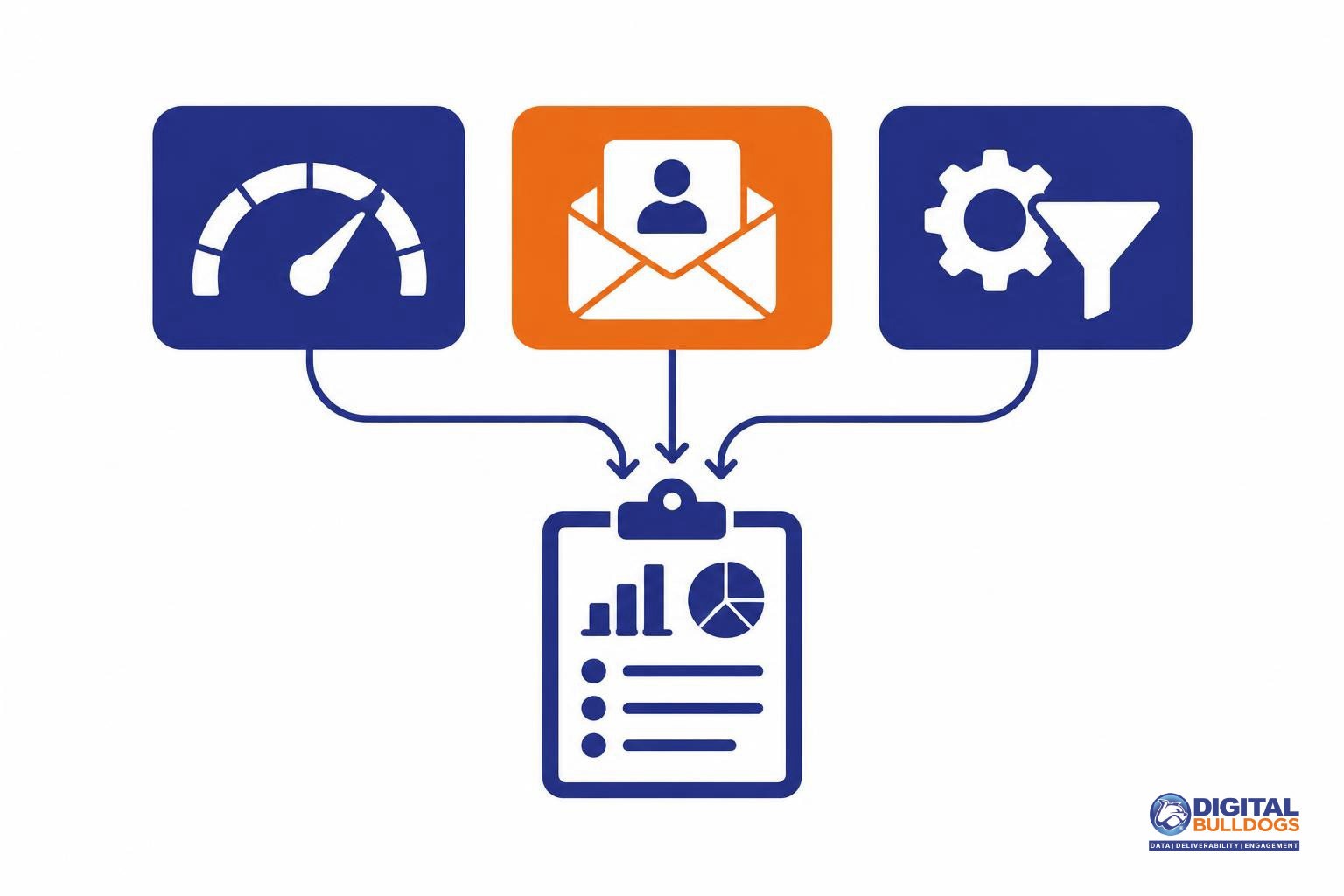
Trace the spike to audience expectations and recent changes
Start by asking what changed for recipients—not by assuming a complaint spike is a DNS problem or a subject-line problem. Review the affected campaigns alongside signup records to see whether people expected these messages from this sender.
- Signup source: Did the complaints follow a new acquisition channel, imported list, or signup form? Check whether recipients explicitly requested messages from your business.
- Recipient expectations: Did the latest campaign match the topics and type of email described at signup?
- Sending frequency: Did a new promotion or automated sequence increase how often recipients heard from you?
- Sender identity: Did the display name or sending address change in a way that made your business harder to recognize?
- Campaign content: Did the subject line accurately represent the message, or did the offer depart from what subscribers expected?
These checks reflect Google’s subscription and message-format guidance: don’t purchase email addresses, send to people who didn’t sign up, or use misleading sender information or subject lines.
As a practical diagnostic method—not a provider-mandated procedure—compare affected campaigns and acquisition segments using your campaign records and available feedback identifiers. Gmail’s Postmaster Tools feedback dashboard can help identify campaigns associated with user-reported spam when feedback identifiers are configured and sufficient data is available. Look for shared characteristics, such as a signup source, unfamiliar sender name, or unexpected increase in frequency, rather than treating a correlation as proof.
If audience and campaign changes don’t explain the spike, use our guide to why emails go to spam and how to investigate for broader authentication, reputation, and placement troubleshooting.
Reduce spam complaints by fixing the recipient experience
Prevent complaints by making sure people recognize your emails, expect them, and can easily stop receiving them. Start with permission—not just a deliverable address.
- Make signup deliberate. Prioritize explicit opt-in and confirm the address before adding someone to marketing campaigns. Explain what you will send, then keep the sender name and message content recognizable. Gmail’s subscription guidance recommends confirming recipients’ addresses and sending only to people who want your messages. Address validity alone does not establish interest or permission; verifying purchased or appended addresses does not turn them into opted-in subscribers.
- Make leaving easy. Keep a clearly visible unsubscribe link in the message body. That link is separate from the technical one-click unsubscribe mechanism, which uses email headers so a mailbox provider can offer its own unsubscribe control. Implement the applicable provider’s requirements rather than assuming a footer link covers everything. Yahoo’s sender best practices call for qualifying senders to support one-click unsubscribe and include a visible unsubscribe link in the body.
- Turn complaints into suppression. Feed complaint reports into a suppression process before sending further campaigns. Yahoo’s Complaint Feedback Loop provides reports for enrolled DKIM domains and advises removing recipients who report messages as spam. Use that feedback to revisit targeting and frequency, too.
- Review disengaged segments. Instead of repeatedly mailing the entire historical list, check how recipients subscribed, what they expected, and whether your current messages still match that expectation. Pause segments where permission or relevance is unclear.
If keeping suppression records and audience segments current is becoming difficult, Digital Bulldogs offers ongoing list management and hygiene to help manage that work.
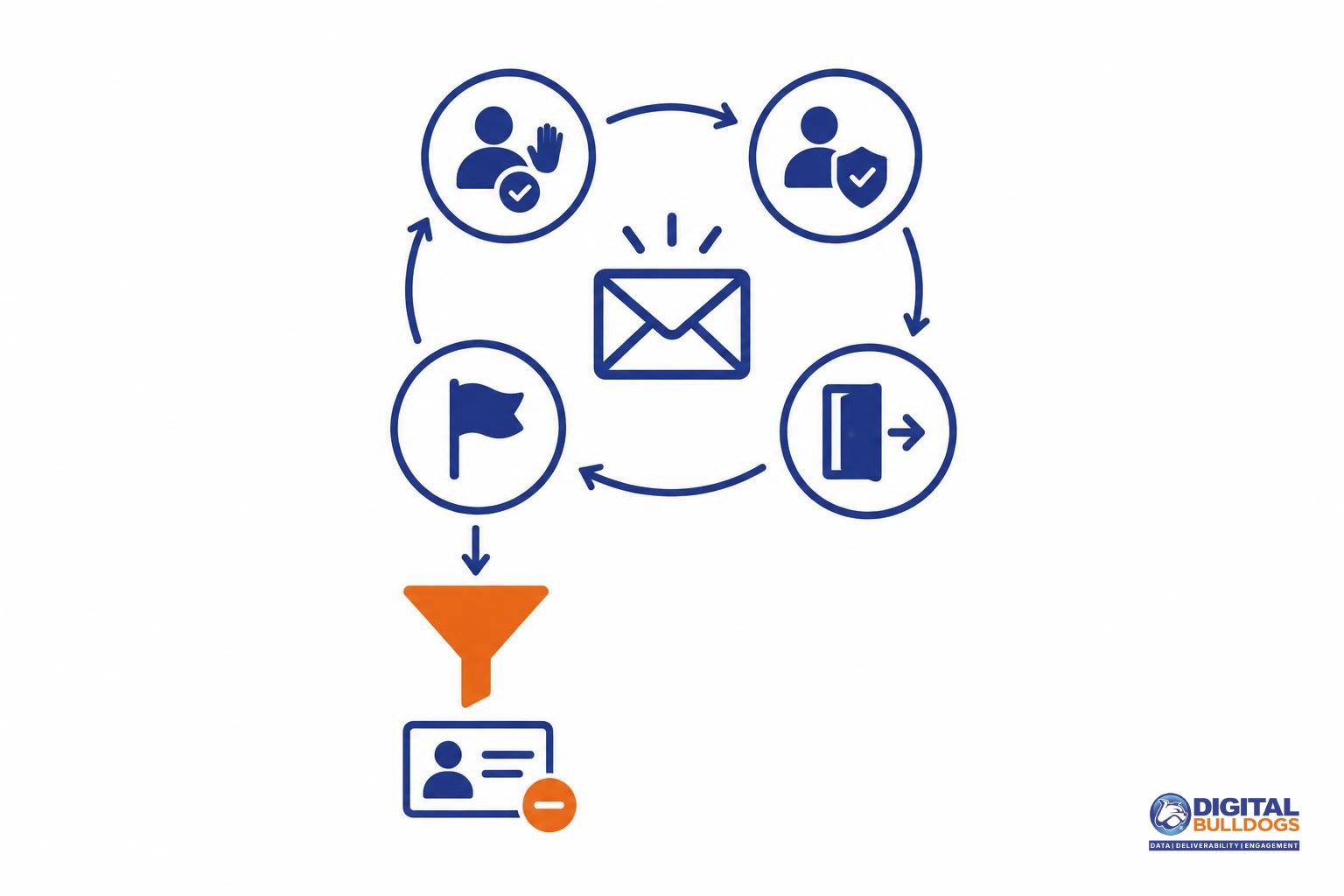
What to do when your complaint rate rises
Pause the suspected promotional campaign or segment while you investigate. That is the first step in this editorial response plan—not a provider-mandated recovery procedure. The aim is to stop repeating a possible recipient-experience problem while you identify its cause.
Act on the signal without assuming it tells the whole story. Gmail calculates spam rate daily, and elevated user-reported spam can affect delivery and eligibility for mitigation, as explained in Google’s sender-guidelines FAQ.
- Check what changed and what the report covers. Confirm the reporting period, provider, and denominator before comparing readings. Review recent audience additions, targeting changes, and sending-frequency changes. Check that unsubscribe requests and existing suppressions are actually reaching your sending platform.
- Fix the identified issue before broadening promotional sending. If permission is unclear, hold that audience out. Correct mismatched targeting, reduce unwanted frequency, or repair suppression processing as appropriate. Authentication matters, but it does not resolve a permission or relevance problem by itself.
- Resume cautiously with recipients who want the messages. Start with the audience whose subscription expectations match the campaign. Monitor provider feedback as volume changes rather than jumping straight back to the previous sending pattern. Google’s email sender guidelines recommend sending to people who want your messages, making unsubscribe easy, and increasing sending volume gradually.
- Look for sustained improvement. Review complaint trends alongside delivery feedback as sending continues. A clean report is a useful signal, not proof that the underlying problem is resolved.
Do not send extra messages to dilute the percentage or rotate domains to escape the problem. Keep the response focused on correcting the recipient experience, not making the reading look better.
Confirm improvement beyond the complaint percentage
A lower complaint rate is encouraging, but it is not enough to confirm recovery. Review it alongside delivery errors, authentication results, domain and IP reputation, and any available evidence of inbox placement.
Gmail’s Postmaster Tools documentation explains that its user-reported spam rate can look low when Gmail automatically sends many messages to spam. Missing dashboard data can also reflect privacy protections rather than an absence of problems.
Use a repeatable review routine:
- Compare comparable sends. Check whether the improvement followed a meaningful change to targeting, suppression, content, or frequency. Compare similar audiences and campaign types where possible.
- Check delivery health. Look for changes in delivery errors, authentication failures, and reputation. Confirm that your sending setup still follows Gmail’s authentication and sending guidelines, including gradual changes in sending volume.
- Investigate placement separately. Ask whether complaints fell because recipients had a better experience—or because fewer messages reached inboxes. Use inbox placement monitoring as a separate source of placement evidence, not as a substitute for provider complaint reports.
- Keep a change log. Record the date, audience, campaign, suppression rules, and sending frequency for each adjustment. Note what changed in the reports afterward so future comparisons have context.
If provider reports conflict or complaint handling is unclear, Digital Bulldogs can help review the evidence and next steps. Book a free consult to talk it through.
Keep researching on Digital Bulldogs
Frequently asked questions
Is a spam complaint limit the same as a healthy target?
No. A complaint limit is a ceiling to stay below, not a goal to approach. Yahoo requires senders to keep complaint rates below 0.3%. Treat that as a boundary, not evidence that recipients welcome your campaigns. Set your operating target comfortably below the limit, and investigate increases rather than waiting until you reach it.
Why does Gmail show a different complaint rate from my ESP?
You may be comparing different calculations. Gmail calculates its spam rate daily using messages delivered to engaged recipients’ inboxes and then marked as spam. Check whether your ESP uses the same recipient population, denominator, reporting period, and complaint signals. If those definitions differ, the percentages are not directly comparable; use each to investigate its own trend.
Can a low complaint rate hide a spam-folder problem?
Yes. Google warns that its reported spam rate can look low when many messages are automatically sent to spam, because those messages are outside the eligible inbox population. Do not read a low percentage as proof of healthy inbox placement. Check delivery errors, domain reputation, and inbox-placement evidence alongside complaints before deciding that a problem has cleared.
How do I stop sending campaigns to Yahoo users who complain?
Enroll your DKIM signing domain in Yahoo’s Complaint Feedback Loop, which sends complaint reports in Abuse Reporting Format. Connect those reports to a suppression process so identified complainants are excluded from future campaigns. If your sending platform manages feedback for you, confirm that suppression is working. Also use the feedback to reconsider the targeting and frequency behind the complaints.
Will fixing SPF, DKIM, and DMARC solve spam complaints?
No—not by themselves. Authentication addresses sender identity, while complaints require attention to what recipients expected and received. Google’s sender guidelines cover authentication alongside wanted subscriptions, clear sender information, easy unsubscribe, and non-misleading messages. Fix authentication gaps, but also review how people joined your list, whether your content matches that promise, and how easily they can stop receiving it.
Sources
- Email sender guidelines · Google
- Sender Best Practices · Yahoo
- Postmaster Tools dashboards · Google
- Complaint Feedback Loop · Yahoo
- Email sender guidelines FAQ · Google