
Domain vs IP Blocklist Check: What to Look Up First
For a domain vs IP blocklist check, look up your email domain and sending IP separately using an official tool such as the Spamhaus IP and Domain Reputation Checker. To check the right IP, find the address that actually connected to the recipient’s mail system—shown as CIP in Microsoft’s anti-spam headers—rather than assuming it is your website’s IP address.
Keep domain checks separate: the Spamhaus Domain Blocklist lists domains, not IP addresses, and domains in message headers and bodies can matter. This guide explains how to identify what to look up, use official lookup tools, distinguish a listing from a lookup error, and choose the next step: authentication and reputation checks if nothing is listed, or the operator’s removal process if something is.
Check the domain and sending IP separately
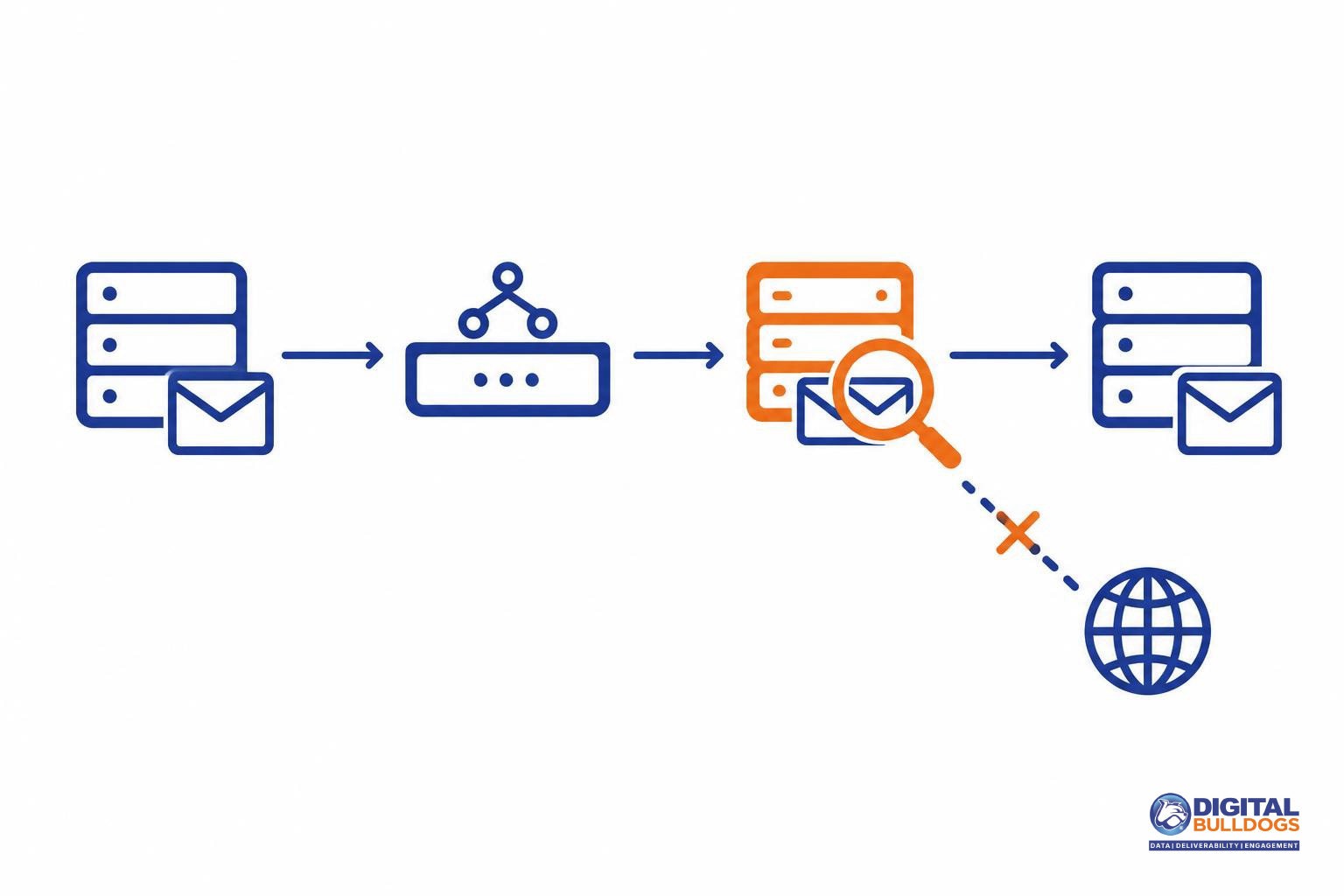
Identify the domain and the IP address used to send the affected email, then check each using a lookup that supports that input. Treat them as separate checks: a result for the domain does not answer whether the sending IP is listed, or vice versa.
The official Spamhaus IP and Domain Reputation Checker accepts both IP addresses and domain names, making it a useful starting point for checking Spamhaus listings. Its results are not a universal verdict from every mailbox provider, and a clean lookup does not guarantee inbox delivery.
Keep the investigation tied to the affected message rather than checking an address or domain simply because it belongs to your business. The workflow is:
- Identify the sender: establish which domain you need to investigate and which IP actually connected to the recipient’s mail system.
- Run separate lookups: submit the domain as a domain and the sending IP as an IP address.
- Read the result carefully: distinguish a confirmed listing from a lookup error or an unsupported query.
- Choose the next investigation: follow the operator’s instructions if listed, or examine authentication and reputation if the lookup does not explain the delivery problem.
For general background, see the broader guide to email blacklist checks and next steps. Here, the focus is narrower: choosing the right lookup inputs and verifying what the results actually tell you.
Find the IP that actually connected to the recipient
Start with the affected email’s full headers, if available—not the IP address behind your website. Your website and email may use different infrastructure, so a website hosting lookup is not a reliable substitute for identifying the connection used to deliver that message.
For messages received through Microsoft cloud mail protection, find the X-Forefront-Antispam-Report header and look for its CIP field. That field identifies the connecting IP address, as explained in Microsoft’s anti-spam header documentation.
Treat that address as evidence of the connection Microsoft received, not automatic proof of the original sending source. Depending on the route, the connecting IP can belong to an intermediary, such as a mail gateway, rather than the infrastructure that first sent the message.
If the route is unclear, ask your email service provider to confirm the outbound IP used for the affected message. Give them the message’s identifying details and any rejection information so they can investigate the specific send rather than supply a general list of possible sending addresses.
Keep the evidence together: save the affected message with its full headers, any rejection details, and the provider’s confirmation. This gives you a clearer basis for the IP lookup and a useful record if you later need to discuss a listing with your provider or the blocklist operator.
Look up the domain without confusing it with an IP
Enter the domain name when checking a domain’s blocklist status—not the IP address its website resolves to. A website IP lookup answers a different question and does not establish whether the domain itself is listed.
The Spamhaus Domain Blocklist documentation makes the distinction clear: the Domain Blocklist (DBL) lists domains, while ZEN is an IP-based blocklist zone and does not include DBL. A “not listed” result for an IP in ZEN therefore does not tell you whether a related domain is listed in DBL.
For the domain side of your investigation:
- Use the domain as the input. Keep it separate from any sending-IP or website-IP checks.
- Look beyond the visible From address. Review relevant domains in the affected message’s headers and links. Domain checks can concern domains used elsewhere in the message, not just the sender address the recipient sees.
- Do not submit an IP to the domain-only DBL zone. That is an invalid query, not evidence that a domain is listed. If your lookup returns an unexpected response, verify the input and dataset before drawing a conclusion.
- Record exactly what you checked. Save the domain name and the dataset named in the result, such as DBL. Avoid a vague note like “blacklist check passed,” which hides whether you checked a domain or an IP.
Keeping those results separate gives you a clearer record of what is listed—and what still needs investigation.
Run an email IP blacklist check with official tools
Start with the confirmed outbound sending IP, then check it directly with the blocklist operator. Keep this lookup separate from your domain check: an IP result is not a verdict on your domain.
- Check the IP in Spamhaus. Return to the Spamhaus IP and Domain Reputation Checker introduced earlier and enter the sending IP as a separate lookup. The checker accepts both IP addresses and domain names, so confirm which input you submitted before saving the result.
- Check SpamCop when it fits the investigation. If a rejection mentions SpamCop, or you need to investigate its list specifically, follow SpamCop’s official IP lookup instructions and use the browser-based lookup. This checks the IP against the SpamCop Blocking List; it does not establish whether a domain is listed.
- Record each check. Keep a short investigation log so you can compare results without mixing operators, lists, or inputs.
For every lookup, save:
- Input: the exact IP address submitted.
- Operator and named list: who ran the check and which list the result identifies.
- Result: the status or response shown, preserving its wording.
- Time checked: the date, time, and time zone.
Keep the main workflow in your browser. DNS queries are an advanced option; use the relevant operator’s instructions rather than assuming every list uses the same query format or response codes.
For additional troubleshooting resources, explore Digital Bulldogs’ deliverability tools and resources. Use them to support your investigation, not as proof of blocklist status.
Separate a listing from a lookup error
A blocklist check can produce three different outcomes. Before acting on an automated report, work out which one you have:
- Confirmed listing: The lookup succeeded, and the response matches the operator’s documented meaning for a listing in the dataset you checked.
- Valid not-listed response: The lookup succeeded and indicates no listing in that particular dataset. That is not an all-clear across other blocklists or a promise of inbox placement.
- Inconclusive or failed lookup: The tool could not obtain a usable answer. A timeout, resolver restriction, or query error should not be labeled “clean.”
DNSBL answers need to be read under the operator’s rules. Do not assume that any returned address means “listed.” Spamhaus’s DNSBL usage guidance explains response interpretation, resolver-related restrictions, and error conditions that can make a result unusable. An automated tool that does not distinguish those errors from listing responses can give you the wrong conclusion.
The type of listing matters, too. The Spamhaus Policy Blocklist is not simply a list of spammers: it identifies IP space that, by policy, should not send mail directly to recipient mail servers. Before requesting removal, consider whether the sending setup fits that policy and whether mail should instead go through an authorized outbound mail server.
If an automated result is ambiguous, verify it in the operator’s own checker. Keep the original response or error message so you can tell a confirmed listing from a failed query rather than treating missing information as a clean result.
Not listed? Check authentication and reputation next
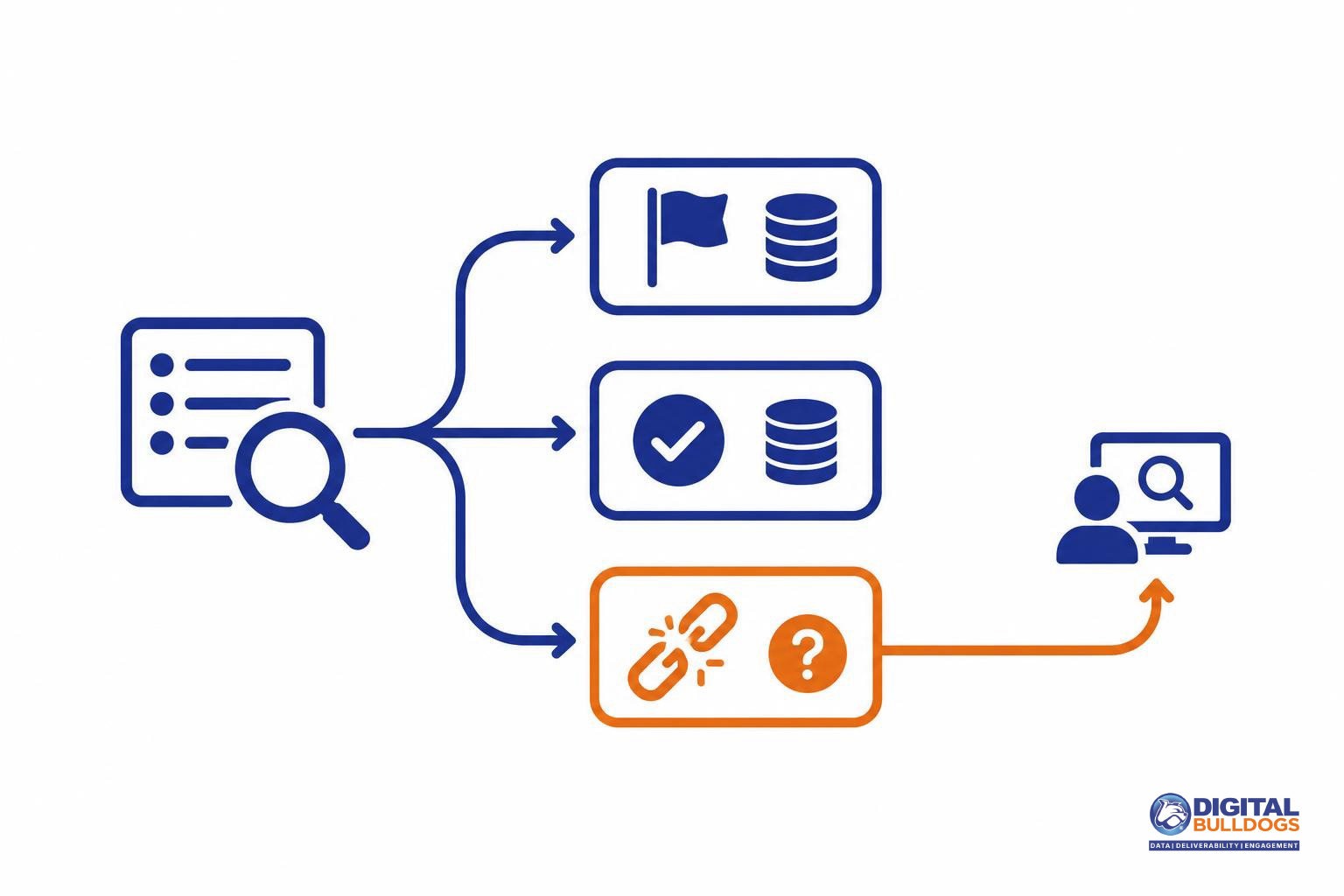
A “not listed” result means the domain or IP you checked was not listed in the dataset queried at that time. It is not an inbox-placement guarantee, and it does not establish the status of other domains or IPs used in your email.
For delivery to personal Gmail accounts, use Google’s email sender guidelines to guide your next checks:
- Authentication: Review SPF, DKIM, and DMARC against the requirements that apply to your sending setup. Confirm that your actual messages authenticate correctly—not just that DNS records exist. Passing authentication does not prove that a domain is absent from blocklists.
- Forward and reverse DNS: Check that the sending IP has a PTR record pointing to a hostname, and that the hostname resolves back to the same IP. Google requires valid forward and reverse DNS for senders to personal Gmail accounts.
- Complaints: Review spam complaints in Google Postmaster Tools where data is available. Investigate whether recipients expect your messages and can easily stop receiving them.
- Sender reputation: Review both domain and IP reputation. Google notes that activity from other senders sharing an IP can affect that IP’s reputation, so a shared sending service deserves attention even when your own blocklist check is clear.
For a deeper investigation, follow our guide on how to check email domain reputation. If authentication and reputation checks do not explain the problem, work through other reasons your emails may go to spam rather than treating a clear blocklist result as the end of troubleshooting.
Listed? Keep the evidence and follow the operator’s process
If a lookup confirms a listing, save the result before making changes. Use the operator’s instructions for that specific listing rather than treating every blocklist as the same removal problem.
For a Spamhaus domain listing, follow the eligibility guidance in the Domain Blocklist documentation and use its checker-based removal path. Read the explanation attached to the domain’s result before submitting a request; a removal request is not a substitute for addressing the issue behind the listing.
Whether you handle the next step yourself or ask your sending provider for help, prepare a concise handoff:
- Exact listed input: Copy the domain or sending IP you checked, not just your website address.
- Operator result: Save the listing name, explanation, and lookup date.
- Affected message: Keep a sample with its full headers.
- Rejection text: Include the complete bounce or SMTP response, if available.
- Provider details: Identify the email platform and any relay involved in sending the message.
For the next steps, follow the email blocklist removal process rather than starting with repeated removal requests.
Digital Bulldogs can help interpret the findings and review authentication and reputation issues. We do not control blocklist operators or guarantee delisting. If you would like help deciding what to investigate next, you can Book a free consult.
For continuing education, explore our email deliverability and audience data insights.
Keep researching on Digital Bulldogs
Frequently asked questions
Does checking my domain also check my sending IP?
No. Treat them as separate checks. The Spamhaus IP and Domain Reputation Checker accepts either a domain name or an IP address, so look up each identifier separately. A domain lookup answers a question about that domain; it does not establish the blocklist status of the infrastructure used to send your email.
Which IP should I check when my email passes through another service?
Start with the IP that connected to the receiving system. In Microsoft cloud anti-spam headers, CIP identifies the connecting IP address. When mail passes through an intermediary, that address may belong to the intermediary rather than the original sender. Use it to investigate the receiving system’s immediate connection, without assuming it identifies where the message originally came from.
Can an incorrect DNS lookup produce a misleading blocklist result?
Yes. Querying the wrong kind of identifier can produce a response that is easy to misread. For example, the Spamhaus Domain Blocklist documentation explains that DBL lists domains, not IP addresses, and treats IP-address queries as invalid. Before calling a response a listing, confirm that the lookup accepts the identifier you submitted and interpret the response using that operator’s instructions.
Does a Spamhaus Policy Blocklist listing mean I sent spam?
No. Spamhaus explicitly says its Policy Blocklist is not a list of spamming IP addresses. A PBL result concerns whether an address should send mail directly to third-party mail servers under the applicable policy. Identify the specific list involved before deciding what to fix; a policy listing is not, by itself, evidence that you sent spam.
Why can email still go to spam when the checked domain and IP are not listed?
A clear blocklist check does not establish that your mail meets the receiving provider’s requirements. For personal Gmail delivery, Google’s sender guidelines address authentication, forward and reverse DNS, spam complaints, and domain and IP reputation. Google also notes that other senders’ activity on a shared IP can affect its reputation. Check those areas next rather than treating an unlisted result as proof that delivery is healthy.
Sources
- IP and Domain Reputation Checker · The Spamhaus Project
- Frequently Asked Questions: Domain Blocklist (DBL) · The Spamhaus Project
- Frequently Asked Questions: DNSBL Usage · The Spamhaus Project
- How can I check if an IP is on the list? · SpamCop / Cisco Systems
- Anti-spam message headers in cloud organizations · Microsoft
- Email sender guidelines · Google