Yahoo Complaint Feedback Loop Setup: Enroll and Use Reports
Most of the work in a yahoo complaint feedback loop setup happens inside Yahoo’s Sender Hub. You create a profile, add and verify your domain, then enroll it, and Yahoo starts sending a report to your chosen address whenever a recipient marks one of your messages as spam. Once those reports start arriving, suppress every complainer promptly. Then look for patterns that show which list sources, segments and send frequencies are generating the complaints.
One detail trips up many senders. Yahoo’s loop is DKIM-only and domain-based, so reports are tied to the domain in your DKIM signature, not to your IP address or your visible From address. If your mail isn’t signed with a domain you control, there’s nothing to enroll. That matters because Yahoo asks senders to keep their spam rate below 0.3% and to use the feedback loop to monitor complaints once DKIM signing is in place. Without the loop, you’re managing that number blind.
This guide covers the prerequisites to check before you enroll and the enrollment steps in Sender Hub. It also explains how to read the parts of an Abuse Reporting Format (ARF) report that actually matter and how to automate suppression so no complainer gets mailed again. From there, it shows how to turn complaint data into decisions about where your list comes from and who you target. It closes with how Yahoo’s approach compares with Microsoft’s and with Gmail’s, which reports aggregate data through Postmaster Tools using a Feedback-ID header rather than individual reports.
What the Yahoo Complaint Feedback Loop is and why it keys on your DKIM domain
The Yahoo Complaint Feedback Loop (CFL) tells you when a Yahoo recipient marks your email as spam. Once you are enrolled, each complaint arrives as a report you can act on. You can stop mailing that person and adjust who you target and how often you send. If the idea of a complaint feed is new to you, start with how email feedback loops work, then come back here for the Yahoo-specific details.
Two design choices shape everything else about Yahoo’s program:
- It is DKIM-only. Yahoo accepts only DKIM-signed mail into the program. It uses the DKIM signature to work out who actually sent a message.
- It is domain-based. You enroll a domain, not an IP address or a sending account.
When a complained-about message carries a DKIM signature from an enrolled domain, Yahoo sends a report in Abuse Reporting Format (ARF) to the address registered for that domain. The sender can then suppress that recipient. Yahoo describes this flow on its Complaint Feedback Loop page for senders.
What this means for your setup
The domain in the DKIM signature decides whose feed a complaint lands in. Many email service providers sign mail with their own shared domain by default. If that is the only signature on your messages, complaints go to whoever enrolled that domain, not to you. You may never see which of your subscribers are complaining.
Signing with a domain you own is what makes the feed yours. When your mail carries your own DKIM signature and you enroll that domain, every Yahoo complaint about that mail comes back to you. That gives you the raw material to clean your list, spot weak traffic sources and protect your sender reputation. The rest of this guide walks through checking that signature, enrolling, and putting the reports to work.
Before you enroll: prerequisites to check
A few things have to be in place before you sign up. Without them, enrollment either fails or the reports never reach anyone who can act on them. Check each item now and the rest of the setup goes smoothly.
DKIM signing on every outbound stream
Yahoo’s Complaint Feedback Loop is a DKIM-only, domain-based service. If a message isn’t DKIM-signed, a complaint about it won’t come back to you. Audit every stream that sends as your brand:
- Marketing campaigns and automations
- Transactional mail, such as receipts, password resets and shipping notices
- Third-party tools, such as CRMs, help desks, survey platforms and affiliate or partner sends
Each one should sign with a domain you control, not the vendor’s shared default.
Pick your d= domains and confirm alignment
Decide which signing domain or domains (the d= value in the DKIM signature) you will enroll. Then open a recent message from each platform and confirm it actually signs with one of those domains. If a platform signs with a domain you didn’t enroll, complaints about that mail won’t reach you.
A dedicated, monitored reporting mailbox
Reports arrive as ARF messages at the address you enroll. Use a mailbox that no spam filter will quarantine, that won’t bounce when it fills up, and that someone or something reads every day. If you need help with this step, our guide to setting up abuse and postmaster mailboxes walks through it.
Yahoo’s baseline sender requirements
Yahoo’s sender best practices set a floor every sender should meet:
- SPF or DKIM authentication at a minimum
- Valid forward and reverse DNS for your sending IPs
- Compliance with RFC 5321 and RFC 5322
The same guidance points out that once you sign with DKIM, the CFL can help you track and manage your spam complaint rate. That is why getting DKIM right across every stream matters more here than any other step.
How to enroll in the Yahoo CFL through Sender Hub
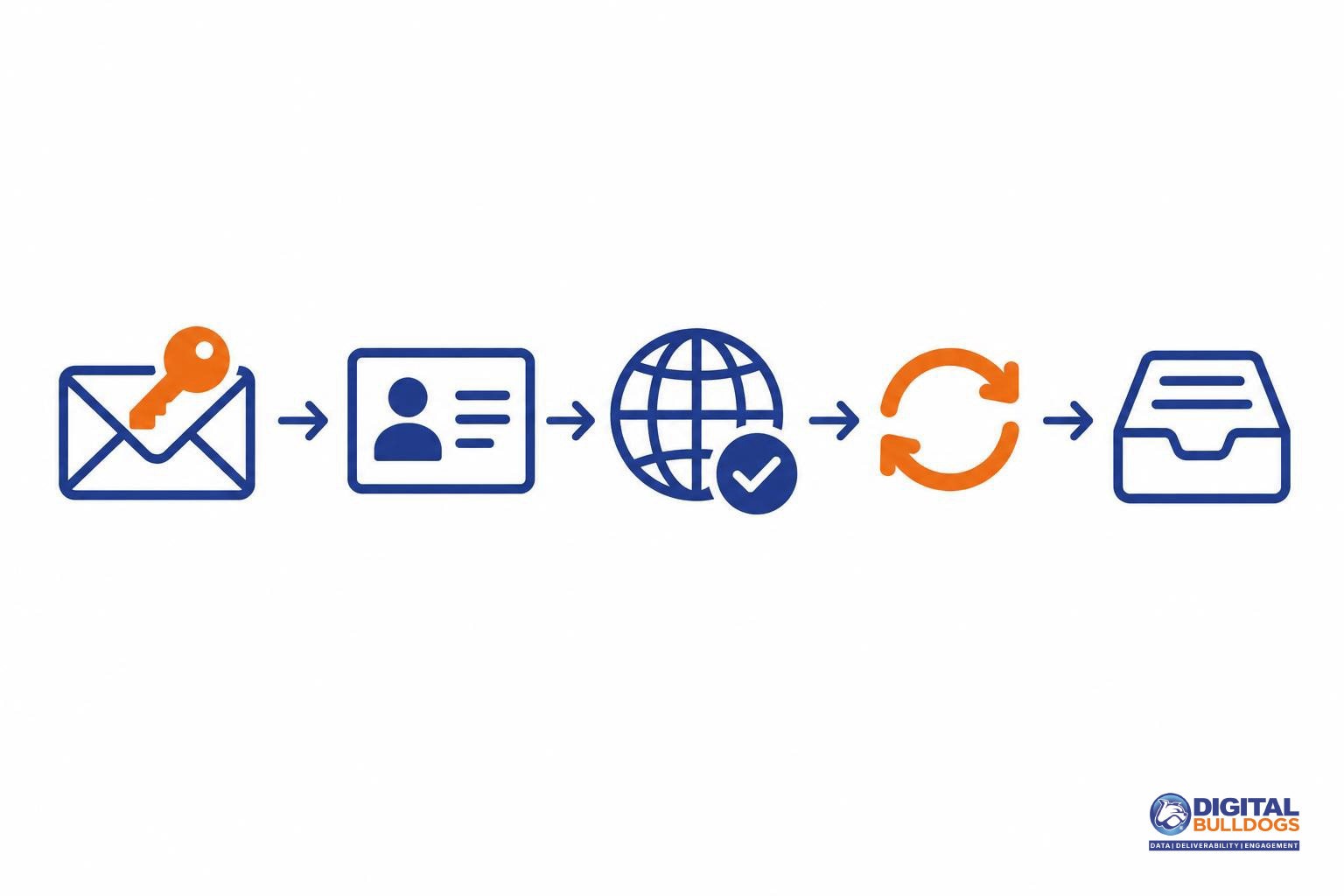
Enrollment has four steps, and they need to happen in order. Yahoo lays them out in its Complaint Feedback Loop getting-started guide: create a profile, add and verify your domain, then enroll that domain. Before any of that, your mail has to be DKIM-signed, because the loop is DKIM-only and matches complaints by domain.
Four steps to Yahoo CFL enrollment
1. Sign with DKIM
The CFL only covers DKIM-signed mail. Sign every stream with a domain you control.
2. Create Sender profile
Set up your Sender profile in Yahoo Sender Hub.
3. Add and verify domain
Add your DKIM signing domain and complete verification.
4. Enroll the domain
Enroll the verified domain in the Complaint Feedback Loop and give the address that should receive ARF reports.
- Confirm outbound mail is DKIM-signed. Check a recent message from every sending platform you use, including your ESP, CRM and transactional service. Note the d= domain in each DKIM signature. That is the domain you will enroll, and it may not match your From address.
- Create your Sender profile in Yahoo Sender Hub. Use a shared team login or role account rather than one person’s mailbox, so access doesn’t disappear when someone leaves.
- Add and verify your domain. Add the DKIM signing domain from step 1 and complete Yahoo’s verification so Sender Hub knows you control it.
- Enroll the verified domain in the Complaint Feedback Loop. Enter the address where you want reports delivered. Choose a mailbox that a person or a parser actually monitors, because every complaint report goes there.
Confirm reports are arriving
After you enroll, send a test campaign from each platform to a Yahoo mailbox you control. Mark the message as spam, then check that a report reaches the address you entered. If one platform signs with a different domain than you expected, this test will show it.
Agencies and ESPs managing several brands
Enroll every DKIM signing domain your clients send from, not just the main one. Complaints are tied to the signing domain, so any domain you leave out sends its complaints nowhere. Keep a simple inventory of client, signing domain, platform and reporting address, and update it whenever a client adds a new sending tool.
If you’re not sure which domains are signing your mail, or you’d like help mapping them across several clients, you can book a free consult with Digital Bulldogs.
Reading an ARF report: the parts that matter
Each complaint report from Yahoo’s loop follows the Abuse Reporting Format (ARF). Because the structure is standardized, you can parse every report automatically. ARF is defined in RFC 5965, the IETF specification for email feedback reports. Each report is a MIME multipart/report message with report-type=feedback-report, split into three parts.
What to read in each ARF report
Multipart/report wrapper
The report type is feedback-report, which is how you can sort ARF from other mail automatically.
Human-readable summary
A short text part meant for people, not your parser.
Feedback-Type field
Machine-readable field; abuse means a spam complaint.
Optional fields
Source-IP, Original-Mail-From and Arrival-Date may be included.
Original message or headers
Where your own identifiers come back so you can match the complainer.
| Part | What it contains | What to do with it |
|---|---|---|
| 1. Human-readable summary | A plain-text note explaining what the report is | Skip it in code. It’s for people reading the report. |
| 2. Machine-readable report | The message/feedback-report section with structured fields | Parse these fields to classify and log the complaint |
| 3. Original message | The full message you sent, or only its headers | Pull your own identifiers out of it |
Fields in the machine-readable part
- Feedback-Type: the kind of report. abuse means a spam complaint.
- User-Agent: the software that generated the report.
- Version: the version of the format.
- Optional fields include Source-IP (the IP the message came from), Original-Mail-From (the envelope sender) and Arrival-Date (when the mailbox provider received it). Store these when present. Don’t build logic that breaks when they’re missing.
Why part three matters most
The returned message or headers are your own mail coming back to you, so anything you put in them before sending comes back too. That’s where matching happens.
Practical tip: add a stable identifier to every message before it goes out. Use a custom header or encode it in your Message-ID, and have it point to both the subscriber record and the specific send or campaign. Then each complaint maps cleanly back to one person and one mailing, even when a mailbox provider redacts the recipient’s address in the report. Keep the identifier opaque, such as a random token or an internal key. Don’t use a readable email address, so it reveals nothing useful if the report is forwarded or stored elsewhere.
Automating suppression of complainers
Every complaint report should remove that person from your mailings automatically and permanently. Yahoo says the Complaint Feedback Loop reports exist so you can suppress that recipient from future campaigns. Treat each one as an opt-out you honor right away.
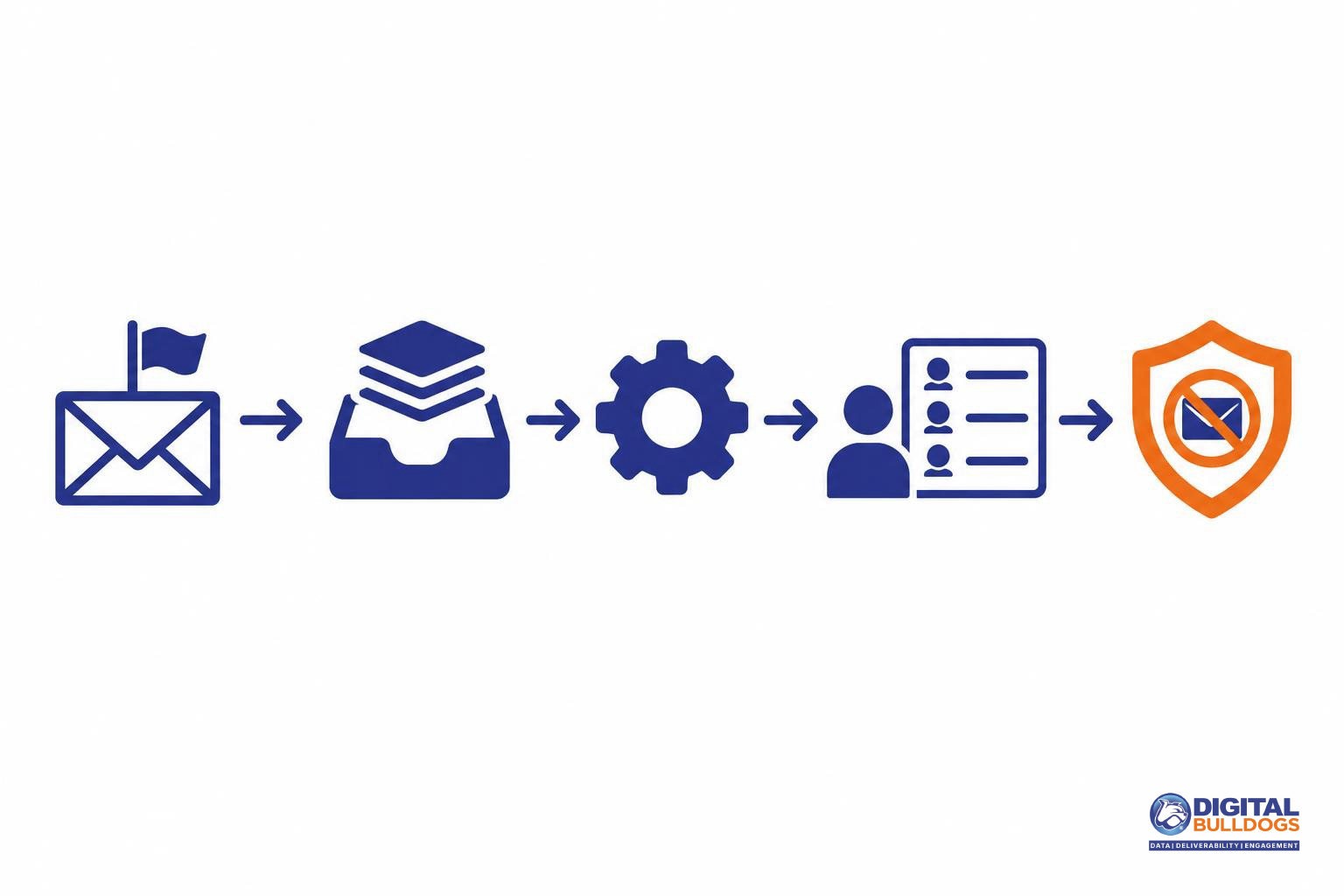
A dependable pipeline has five steps:
- Reporting mailbox: Use a dedicated address that receives only feedback reports, so nothing gets buried in a shared inbox.
- ARF parser: Have software read each report’s machine-readable part and extract the original message or headers.
- Subscriber match: Map the identifier in the report back to the matching record in your database. That identifier can be the recipient address or a subscriber ID you place in your own headers.
- Global suppression list: Add the address to a list that every send checks before mail goes out.
- Logging: Record the list source, campaign and mail stream so you can spot patterns later.
Suppress globally. If the same address appears on several brands or lists you send, remove it from all of them, not only the campaign that drew the complaint. Someone who marks one newsletter as spam rarely wants your other mail. Further complaints on lists signed with the same domain keep damaging the same reputation.
Make leaving easier than complaining
Many complaints come from people who couldn’t find a quick way out. Yahoo’s sender best practices set these requirements for marketing and subscribed mail:
- A working list-unsubscribe header that supports one-click unsubscribe, with the RFC 8058 POST method highly recommended.
- A visible unsubscribe link in the message.
If your mail doesn’t meet these yet, start by adding a one-click List-Unsubscribe header. Route those unsubscribes into the same global suppression list.
Watch for silent failures
Suppression is only as reliable as the reports feeding it. If reports stop arriving or start failing to parse, complainers keep getting your mail and nothing warns you. Set an alert for when daily report volume falls well below your normal level, and another for any parse errors. Process unparsed reports by hand until the fix is in place.
Using complaint data to find bad sources and segments
Complaint reports are most useful when you can trace each one back to where the subscriber came from. Ask what a group of complainers have in common, and you will usually find that problems cluster in a few places rather than spreading evenly across your list.
Tag records so complaints can be grouped
When someone joins your list, store a few fields alongside the address:
- Acquisition source: the form, partner, co-registration feed or landing page.
- Signup date: so you can see whether older or newer subscribers complain more.
- Offer: the lead magnet or promotion that brought them in.
- Segment: the interest group or audience they were placed in.
Without these tags, a complaint is just an address to suppress. With them, it shows you where your list has problems.
Compare complaints where they concentrate
Group complaints by source, campaign, sending frequency and stream. Keep transactional mail such as receipts and password resets separate from marketing mail, so a spike in one does not hide inside the other.
Yahoo asks bulk senders to use the CFL to watch their complaint rate and to keep the spam rate below 0.3%. Treat that figure as a ceiling. Breaking complaints down by source and segment helps you spot which parts of your program are pushing you toward it.
Turn findings into decisions
- Pause or retire weak sources that keep producing complaints well above the rest of your list.
- Slow down sends to tired segments where complaints rise as frequency goes up.
- Offer an opt-down, such as a weekly digest instead of daily mail, so subscribers have a choice other than staying on everything or leaving.
To set targets for each source and segment, see our guide on what counts as a good spam complaint rate. If you would like a second set of eyes on your source data, you can book a free consult with Digital Bulldogs.
How Yahoo’s loop differs from Gmail and Microsoft
Each major mailbox provider handles complaint feedback differently. Yahoo gives you the most detail per complaint, Gmail gives you trends, and Microsoft runs a separate program you have to join on its own.
| Provider | What you receive | What it’s tied to |
|---|---|---|
| Yahoo | A report for each complaint, in ARF format | Your enrolled DKIM domain |
| Gmail | Aggregate spam rates, no per-recipient reports | Feedback-ID identifiers on DKIM-signed mail |
| Microsoft | Complaint data through its own program, JMRP | Separate enrollment in Microsoft’s sender portal |
Yahoo: one report per complaint
The Yahoo Complaint Feedback Loop is a domain-based service that only works with DKIM. When a recipient marks your mail as spam, Yahoo sends an ARF report to your enrolled address. You can act on that specific complaint right away, which is why Yahoo is the easiest place to tie complaints to individual addresses.
Gmail: trends, not names
Gmail never tells you who complained. Its Feedback Loop shows aggregate spam rates in the Postmaster Tools dashboard, broken out by identifiers you place in a Feedback-ID header. Here is what Gmail requires:
- The header uses the format a:b:c:SenderId. SenderId is mandatory and must be 5 to 15 characters.
- Mail must be DKIM-signed by a domain you own after the Feedback-ID header is added.
- That domain must be verified in Postmaster Tools.
Use the a, b and c fields for things like campaign, list source or customer. If one of those values shows a spike, you know which stream to look at, even though you can’t see which subscribers complained.
Microsoft: a separate program
Microsoft runs its own Junk Mail Reporting Program (JMRP), and you enroll through Microsoft’s sender portal. JMRP covers Microsoft mailboxes only. It doesn’t replace your Yahoo or Gmail monitoring, so plan to keep all three running.
Running three programs with three different data formats takes ongoing work. If you’d like help, Digital Bulldogs can set up complaint processing and monitoring across Yahoo, Gmail and Microsoft. Book a free consult to talk it through.
Frequently asked questions
Do I need DKIM to join the Yahoo Complaint Feedback Loop?
Yes. Yahoo describes its Complaint Feedback Loop as a DKIM-only, domain-based service. Complaints are matched to the domain that signed the message with DKIM, so mail that only passes SPF won’t produce reports. Enrollment has three steps: create a Sender Hub profile, add and verify your domain, then enroll that domain. Reports arrive in ARF format at the address you register.
Does Yahoo’s CFL cover mail signed only with my ESP’s domain?
Not for you. The loop is keyed to the DKIM signing domain, so complaints are tied to whichever domain appears in the signature. If your messages carry only your email service provider’s DKIM signature, that domain is the one the loop recognizes. You can’t verify a domain you don’t control, so you won’t receive those complaints directly.
The usual fix is to set up custom DKIM so your own domain signs your mail, then enroll that domain. If you’d like help sorting out signing across several platforms, you can book a free consult.
What spam complaint rate does Yahoo expect from bulk senders?
Yahoo’s sender guidance asks senders to keep the spam rate below 0.3% and suggests using the CFL to monitor complaints once DKIM signing is in place. Treat 0.3% as a ceiling, not a target. A rate creeping toward it is a sign to look at list sources, sending frequency and unsubscribe visibility before inbox placement suffers.
Does Gmail send individual complaint reports like Yahoo?
No. Gmail’s loop works through a Feedback-ID header and shows aggregate data in the Postmaster Tools FBL dashboard rather than sending a report for each complaint. The header follows an a:b:c:SenderId pattern, with a SenderId of 5 to 15 characters. It must be added before the message is DKIM-signed by a domain you own and have verified in Postmaster Tools. That lets you spot problem campaigns, but it doesn’t identify the individual complainers you need to suppress.
Sources
- Complaint Feedback Loop · Yahoo Sender Hub
- Sender Best Practices · Yahoo Sender Hub
- RFC 5965: An Extensible Format for Email Feedback Reports · IETF / RFC Editor · 2010-08-01
- Feedback Loop – Gmail Help · Google